


The Quick Answer
If your Munbyn P44S won't connect, you're likely pairing it wrong. Learn how to pair in the app, not your phone settings.
Portable printers live and die by their wireless connection, and the P44S is no exception. When someone brings me a Munbyn P44S Bluetooth pairing problem, I can usually predict the cause before I touch the printer — because the same three mistakes account for nearly every case I see.
None of them are the owner's fault, exactly. Bluetooth on phones has quietly gotten more complicated, and printer guides haven't kept up.
This article fixes that. We'll go from the ten-second checks to the deeper ones, and I'll flag the Android permission issue that stumps almost everyone, including a few techs I know.
Quick-Fix Summary
Run these in order:
- Charge it. Low battery makes Bluetooth flaky before anything else fails.
- Pair inside the printing app, not your phone's Bluetooth settings.
- Grant location permission on Android — required for Bluetooth scanning.
- Disconnect every other device the printer has ever met.
- Restart phone and printer, then reconnect fresh.
- Forget and re-pair to clear a corrupted pairing record.
- Reset the printer if the pairing problem survives everything above.
Fix 1: Rule Out the Battery
Charge the P44S for at least 30 minutes before troubleshooting anything wireless.
Why this works: Bluetooth radios are among the first things a low battery starves. A printer at 15% charge can power on, look alive, and still broadcast such a weak or intermittent signal that pairing fails halfway.
In my shop I don't even begin wireless diagnostics until the battery is solidly charged — it eliminates a whole category of ghost problems for free.
Fix 2: Pair in the App, Not Phone Settings
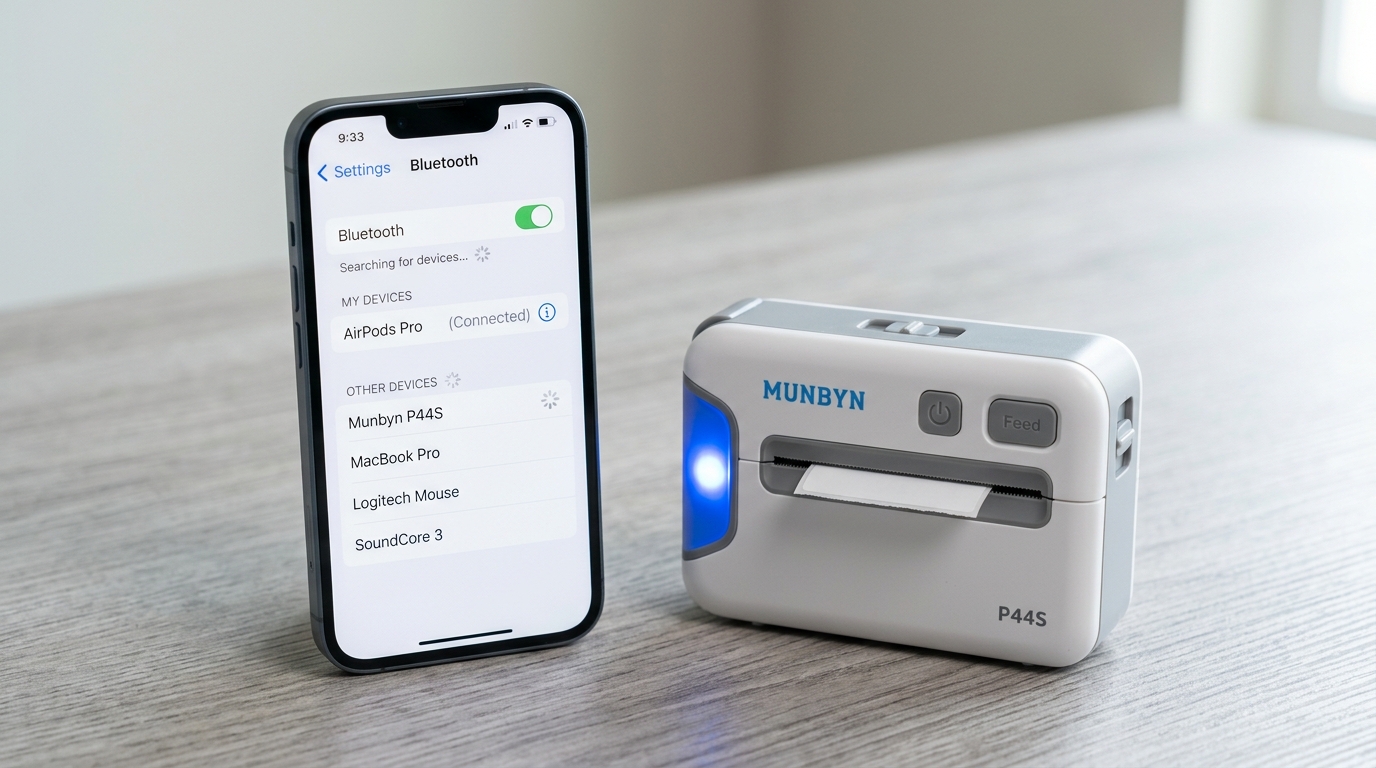
Here's what customers get wrong most: they open their phone's Bluetooth settings, tap the P44S, see "Connected," and expect printing to work. It won't — or it'll work inconsistently, which is worse.
Do it this way instead. If you paired in phone settings already, tap the printer there and choose Forget This Device. Then open the Munbyn app, find its own printer/device connection screen, and connect to the P44S from inside the app.
Why this works: System Bluetooth pairing is a general handshake. Actual label printing runs over the app's own connection to the printer, and on many phones a stale system-level pairing actively blocks the app from establishing that link.
The app connection is the only one that carries your labels, so it's the only one that matters.
Fix 3: The Android Location Permission (My Uncommon Tip)
This is the fix that saves the most desperate cases, and it sounds so unrelated that people refuse to believe it until it works.
On Android, apps cannot scan for Bluetooth devices unless they have location permission. Not because the printer cares where you are — because Android's designers realized that scanning nearby Bluetooth signals can reveal your location, so they locked scanning behind the location permission.
Deny that permission and the Munbyn app will spin forever, "searching for devices," finding nothing, while the P44S sits six inches away broadcasting its heart out.
Go to your phone's Settings → Apps → find the Munbyn app → Permissions → set Location to allowed (on newer Android versions, look for "Nearby devices" permission as well and allow that too). Then reopen the app and scan again.
Why this works: You're not giving up privacy for a gimmick — you're satisfying an OS rule that gates the scan itself. I keep this fix printed on a card in my shop because the conversation is always the same: "Why does a printer need my location?" It doesn't.
Android needs the permission before it lets any app look for nearby Bluetooth devices. Once people understand that, the fix takes thirty seconds.
iPhone users get a related version: if the app never asked for Bluetooth access, or you declined it, go to Settings → Privacy & Security → Bluetooth and switch the Munbyn app on.
Fix 4: Clear the One-Connection Rule
The P44S serves one device at a time. If your tablet, your partner's phone, or your previous phone connected to it last, the printer may still be holding that line — and it won't announce it. It just ignores your new phone politely.
Power the printer fully off and back on to drop all connections, make sure Bluetooth is off on every other device that's ever paired with it, then connect from the phone you actually want.
Why this works: A held connection looks identical to a dead printer from the outside. Power cycling frees the line instantly. In households where two people ship orders, this single fix ends most "it hates my phone specifically" complaints.
Fix 5: The Ordered Restart
Turn the printer off. Restart your phone completely — not just Bluetooth off/on, a full restart. Power the printer on. Open the app fresh and connect.
Why this works: Phone Bluetooth stacks accumulate half-dead connections that report as active while passing nothing. Only a full restart flushes the stack. The order matters too: you want the printer awake and advertising before the freshly-booted app starts scanning, not after.
Fix 6: Forget and Re-Pair
If pairing once worked and then stopped, the stored pairing record itself may have corrupted — often after a phone OS update.
Forget/remove the P44S everywhere it appears: phone Bluetooth settings and the app's device list. Then power cycle the printer and pair again from scratch, app first.
Why this works: Pairing records store encryption keys agreed on during the first handshake. An OS update or firmware hiccup can leave the phone and printer holding mismatched keys — both sides remember each other, neither can talk.
Deleting the record forces a brand-new key exchange. It's the Bluetooth equivalent of "have you tried turning it off and on," and it earns its cliché status.
Fix 7: Reset the Printer
Last resort before support: reset the P44S itself. Look for a small reset hole on the body and press gently with a straightened paper clip until you feel a click, or use the button-hold reset sequence in your model's quick-start card.
Then re-pair from a clean slate, app first, permissions granted.
Why this works: The printer keeps its own list of paired devices, and that list can fill up or corrupt just like your phone's can. A reset wipes it, giving the next pairing attempt a factory-fresh printer to talk to.
When to Call a Professional
Contact Munbyn support when: the P44S won't pair with any device (test with a second phone before concluding this), the printer's Bluetooth light never enters pairing mode at all, or a full reset changes nothing. Include your phone model, OS version, and a screen recording of the failed pairing attempt — wireless bugs are far easier to diagnose on video.
Warranty replacement is the usual outcome for genuine radio failures. Out of warranty, on a portable printer at this price, replacement almost always beats repair, and I say that as the guy who'd be charging you for the repair.
FAQ
Why does the Munbyn app need my location to find the P44S?
It's an Android rule, not a Munbyn choice. Bluetooth scanning can reveal location, so Android gates scanning behind the location (or "nearby devices") permission. No permission, no scan, no printer found.
My P44S pairs with my phone but not my tablet. Why?
The printer holds one connection at a time. Disconnect or power off the phone's Bluetooth, power cycle the printer, then connect from the tablet inside the app.
The P44S paired fine for months, then a phone update broke it. What now?
Classic corrupted pairing record. Forget the printer in both phone settings and the app, update or reinstall the Munbyn app, re-grant permissions, and pair again from scratch.
Should I pair the P44S in my phone's Bluetooth settings first?
No — go straight to the app. On many phones, a system-level pairing actually blocks the app's connection. If you've already paired in settings, forget it there before connecting in the app.
Nearly every Munbyn P44S Bluetooth pairing problem comes down to the same short list: a hungry battery, pairing in the wrong place, a missing Android permission, or a rival device hogging the line. Work the fixes in order, and remember the golden rule of this printer — the app connection is the real connection.
Get that one habit right and the P44S becomes what a portable printer should be: something you never think about.
