


The Quick Answer
HP printhead alignment keeps failing? A repair tech explains the scanner glass connection almost nobody knows about, plus 4 other real fixes.
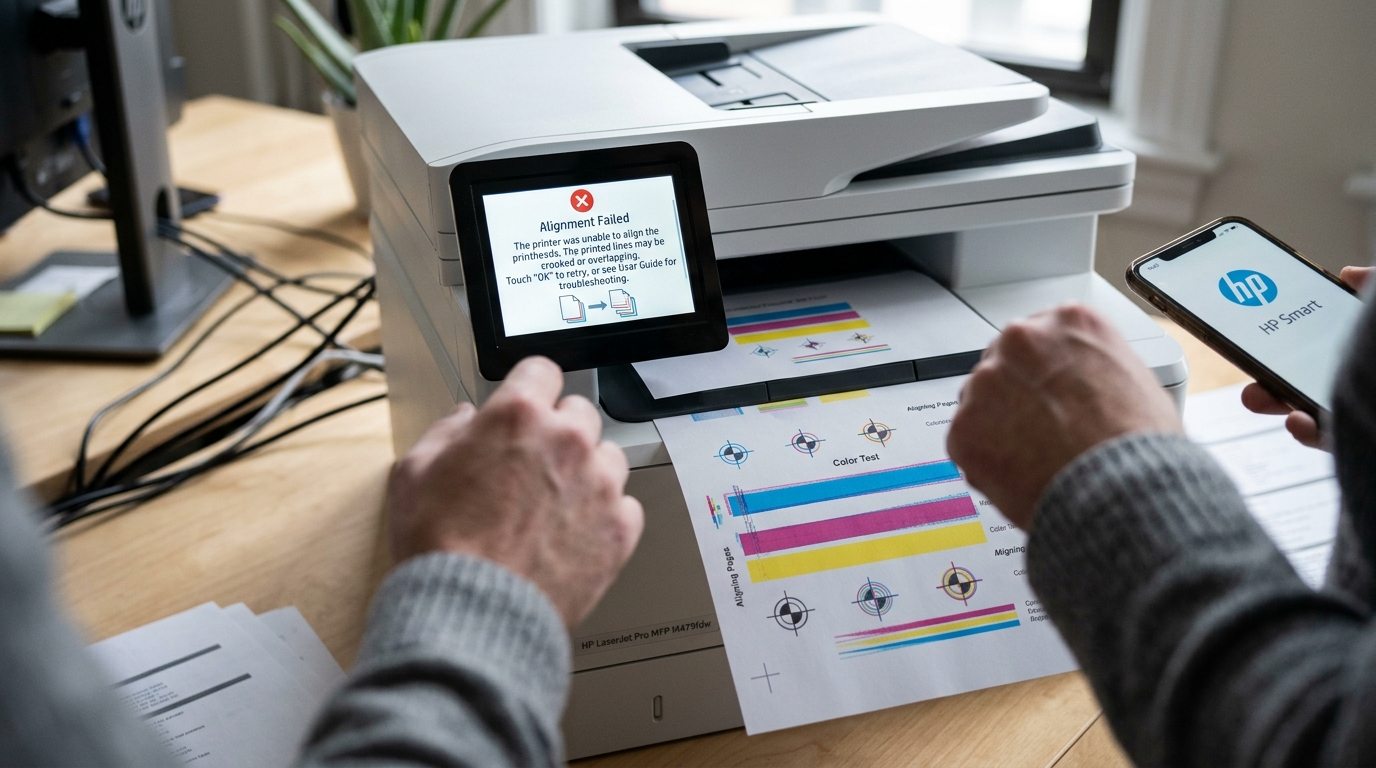
You run alignment. It fails.
You run it again. It fails again — sometimes with the exact same result, sometimes with a slightly different failure, but never actually succeeding.
Repeated printhead alignmentfailures are genuinely frustrating specifically because the process feels like it should be simple. There's a piece of how it actually works on multifunction printers that almost nobody explains, which turns out to be the answer more often than you'd expect.
Quick-Fix Summary
Fast version:
- Check paper type and loading — plain paper matters more here than people realize.
- Confirm ink or toner levels are adequate across every color.
- Clean the printhead before attempting alignment again.
- Clean the scanner glass — my uncommon tip, and the connection almost nobody knows exists.
- Try alignment through a different interface if one method keeps failing.
Fix 1: Check Your Paper
Make sure you're using plain, standard white paper for alignment — not photo paper, cardstock, or anything textured or colored. Confirm it's loaded straight in the tray, without skewing to one side.
Why this works: the alignmentprocess depends on the printer being able to clearly read specific printed patterns. Unusual paper surfaces or a page that's feeding in crooked can interfere with that reading process in ways that have nothing to do with your actual ink or printhead health.
Fix 2: Confirm Adequate Ink or Toner
Check actual reported levels through the HP Smart app or your printer's status display for every color, not just the ones you assume might be running low.
Why this works: alignmentspecifically requires printing a clear, complete test pattern across every color channel. If any single color is running critically low, the resulting pattern can come out incomplete or inconsistent enough that the printer's own alignment process fails to read it successfully, even though regular printing might still look acceptable to your eye.
Fix 3: Clean the Printhead Before Realigning
Run the printhead cleaningcycle through HP Smart or your printer's maintenance menu. Only attempt alignment again after confirming a clean cycle completed successfully.
Why this works: a printhead with partially clogged nozzles produces an incomplete or uneven alignment test pattern, and the printer's alignment process needs a genuinely clean, fully-formed pattern to read and calculate proper adjustments from. Attempting alignment before addressing an underlying clog is often working against yourself.
Fix 4: Clean the Scanner Glass (My Uncommon Tip)
Here's the connectionthat resolves more repeated alignment failures than anything else on this list. It sounds completely unrelated to printing until you understand the actual mechanism behind it.
On many HP all-in-one printers, the alignment process doesn't just print a test pattern — it also scans that pattern back in using the flatbed scannerto automatically read and calculate the correct adjustments, rather than requiring you to manually judge. Select the best-aligned option yourself.
This means alignment success depends on both the printhead's ability to print clearly and the scanner's ability to read that print back accurately— and if the scanner glass is dirty, smudged. Or has debris on it, the scan-back step can fail or produce inaccurate readings, causing the entire alignment process to report as failed, even when the actual printed test pattern was perfectly fine.
To check and fix this: open the printer's lid. Clean the flatbed scanner glass thoroughly with a soft, lint-free cloth — a microfiber cloth works well, lightly dampened with water if needed for stubborn marks, never any harsh chemical cleaner directly on the glass.Pay particular attention to the edges and corners, where dust.
Fingerprints commonly accumulate and are easy to miss during a quick glance. Once clean, attempt alignment again.
Why this works: this is precisely the kind of dependency that never occurs to people troubleshooting an alignmentfailure, because scanning and printing feel like two completely separate functions of the printer — you print documents, you separately scan documents. It's not obvious that one internal process would need both working together.But because alignment specifically closes the loop by scanning its own printed output back in for automatic reading.
A scanner glass that's simply dusty or smudged, something with zero effect on your regular printing or copying, can be the entire reason alignment keeps failing.I've seen this resolve alignment problems that survived multiple printhead cleanings and cartridge replacements, simply. Nobody thought to look at the scanner glass specifically in the context of a printing problem.
Fix 5: Try a Different Alignment Interface
If your printer offers alignment through more than one interface — the printer's own control panel menu, the HP Smart app, or your computer's printer utility software — try running the process through a different one than you've been using.
Why this works: different interfaces occasionally use slightly different versions of the alignmentprocess or communicate with the printer through different pathways. If one interface is experiencing a software-level hiccup specifically, trying an alternate can sometimes succeed even without you changing anything about the physical printer itself.
When to Call a Professional
If you've confirmed correct plain paper, adequate ink or toner across every color, a genuinely clean printhead, a clean scanner glass. Tried alignment through more than one available interface — and alignment still consistently fails — this points toward a possible hardware issue with the printhead itself or the printer's internal alignment sensors.
Contact HP support with your printer's serial number and describe specifically that alignment fails consistently despite addressing paper, ink, cleaning, and scanner glass, since ruling out those common causes helps direct their diagnostic more efficiently toward genuine hardware possibilities.
FAQ
Why would my scanner affect printhead alignment at all?
On many HP all-in-one printers, alignment works by printing a test pattern and then scanning it back in automatically to calculate the correct adjustments.A dirty scanner glass can cause that reading step to fail. Making alignment report as failed even when the actual print was fine.
How do I clean the scanner glass safely?
Use a soft, lint-free cloth, lightly dampened with water if needed for stubborn marks.Avoid harsh chemical cleaners directly on the glass. Pay particular attention to the edges and corners where dust commonly collects unnoticed.
Does low ink really affect alignment even if my regular prints still look fine?
Yes — alignmentneeds a complete, evenly printed test pattern across every color to read accurately. A color running low enough to affect that specific pattern might not be low enough to visibly affect your everyday printing yet.
What if cleaning the scanner glass doesn't fix it?
Work through the other fixes in order — confirming paper type, ink levels, and a clean printhead — and try alignment through a different available interface if your printer offers more than one. If it still consistently fails after all of that, it's worth contacting HP support directly.
When printhead alignmentkeeps failing on an HP all-in-one, don't overlook the scanner glass — on printers where alignment works by scanning its own printed test pattern back in. A smudge or bit of dust there can cause the entire process to fail with no obvious connection to what you'd normally think of as a printing problem.
Clean it, confirm your paper and ink, and alignment usually succeeds on the very next attempt.
Additional Resources
If you are still experiencing issues after trying the steps above, you may need to consult the official documentation or download the latest firmware (internal software) for your specific printer model. We recommend checking the following official resources:
