


The Quick Answer
HP Smart Tank 720 ink not flowing to the printhead? A repair tech explains the gravity-fed system and the manual priming trick most guides skip.
Full tanks, empty pages — it's one of the more disorienting problems a printer can throw at you,. This happens because everything looks fine right up until nothing comes out.
If your HP Smart Tank 720 shows ink not flowing to the printhead despite tanks that are visibly full, you're dealing with a specific quirk of how this printer moves ink. Understanding that mechanism is most of the battle.
Quick-Fix Summary
Fast version:
- Run the standard cleaning cycle first, even if it feels obvious.
- Check for visible air bubbles in the ink tubes.
- Gently tilt the printer forward and back to help trapped air move.
- Run the built-in priming cycle through HP Smart or the control panel.
- Manually work the ink tube if a stubborn bubble won't clear — my uncommon tip.
Why the Smart Tank System Works Differently
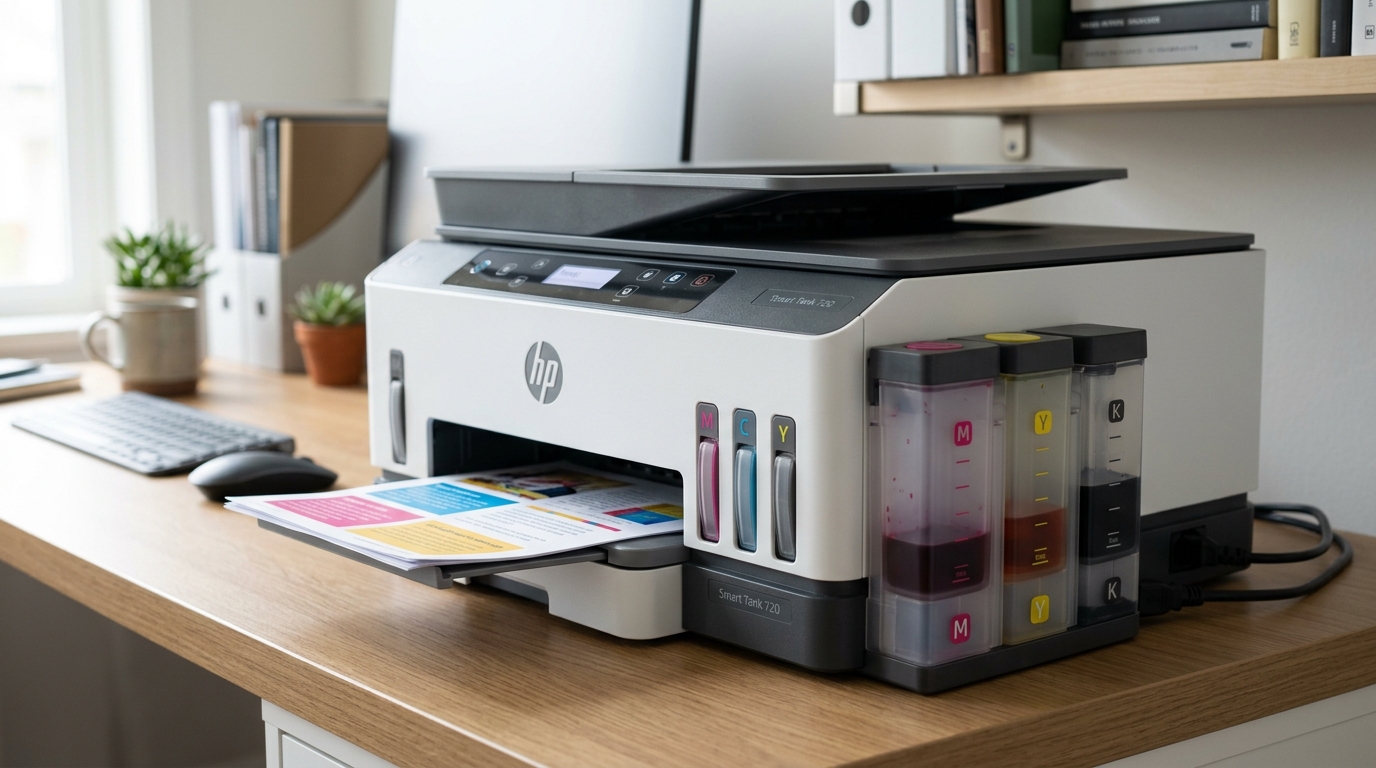
Unlike traditional cartridge printers where ink gets actively pumped or pressurized from a sealed cartridge, the Smart Tank line uses a largely gravity-fed system — ink sits in refillable tanks positioned above or alongside the printhead. It flows down through thin tubes to reach the nozzles, assisted by gravity and the printer's priming mechanism rather than constant active pumping.
Why this matters: gravity-fed systems are elegant and let you refill cheaply from bottles, but they share one specific vulnerability that sealed cartridge systems mostly avoid — air bubbles.
A pocket of trapped air in the tube can block the smooth flow of ink completely, the same way an airlock can stop water flowing through a garden hose even though the tap is fully open.
Ink not flowing on this printer is very often exactly that: not a lack of ink, but air where ink should be.
Fix 1: Run the Standard Cleaning Cycle
From the HP Smart app or the printer's own control panel, find Printer Maintenance and run Clean Printhead. Print a quality diagnostic page afterward to see which colors, if any, improved.
Why this works: the cleaning cycle draws ink through the system under a small amount of pressure, and for minor blockages or slight air pockets, that alone is often enough to restore normal flow. It's the right first step even though it doesn't always resolve a genuine air lock on its own.
Fix 2: Look for Visible Air Bubbles
Open the ink tank access door and look closely at the tubes running from the tanks toward the printhead. On many Smart Tank models these tubes are visible or semi-visible.
Look for a gap of clear space or a visible bubble sitting inside the tube where you'd expect to see solid, continuous ink color instead.
Why this works: this is the single most direct diagnostic step available to you — seeing the actual air pocket confirms exactly what's wrong, rather than guessing between an air lock, a genuine clog, or something else entirely. If you can see it, you know precisely what you're trying to clear.
Fix 3: Gently Tilt the Printer
With the printer powered off, gently tilt it forward a few degrees, hold for a moment, then tilt it back. Repeat this a few times.
Why this works: trapped air is lighter than ink and naturally wants to rise, while gravity pulls the ink itself downward — tilting the whole unit changes the angle of the tube relative to gravity, encouraging a stubborn air pocket to migrate toward the tank rather than sitting lodged partway down the tube blocking flow. This sounds almost too simple, and yet it's one of HP's own recommended steps for exactly this symptom, because it works with the physics of a gravity-fed system rather than against it.
Fix 4: Run the Built-In Priming Cycle
Open the HP Smart app, go to Printer Settings → Maintain Printer, and look for Prime the Printhead. If that specific option isn't visible in your app version, check the printer's own control panel under Printer Maintenance, or try a hard reset first (power off, unplug from the wall, wait 60 seconds, reconnect) — this can prompt the pump system to re-initialize when the printer next boots.
Why this works: priming is a more forceful version of the standard cleaning cycle, specifically designed to pull ink all the way through the entire supply line from tank to nozzle, actively working against exactly the kind of air pocket that a light cleaning cycle sometimes can't shift. It's the step directly above basic cleaning on the intensity ladder, and it's built for this specific complaint.
Fix 5: Manually Work the Tube (My Uncommon Tip)
Here's the technique for the genuinely stubborn cases — the ones where cleaning cycles, priming. Gentle tilting all leave the same visible air gap sitting in the same spot, refusing to budge.
Power off the printer and unplug it. Open the printhead access area and locate the smaller secondary latch or case sitting just above the main printhead assembly — on several Smart Tank models, this can be gently unclipped and lifted to access the ink tube more directly.
With it open, gently press down on this smaller case repeatedly — dozens of times, in a slow, steady rhythm — while watching the tube for movement. At the same time, or as a separate step, gently tap the affected ink tube itself with something soft, like the eraser end of a pencil, working from the tank side down toward the printhead side, encouraging the bubble to travel in the direction ink should already be flowing.
Close the latch firmly afterward, and allow the printer to run its automatic setup before testing.
Why this works: this technique was discovered and refined by actual Smart Tank owners troubleshooting exactly this air-lock problem, and it works because it does directly, by hand, what the pump system tries to do automatically — force movement through the tube via repeated pressure changes and light physical agitation. A single priming cycle applies pressure once;
manually working the tube applies it dozens of times in a row with your own hand adjusting technique in response to what you're seeing, which succeeds against bubbles that a single automated cycle sometimes can't quite dislodge.
It's more hands-on than anything in a standard troubleshooting guide, and it's exactly the kind of persistent, physical problem-solving that separates a stubborn air lock that never clears from one that finally does.
When to Call a Professional
If you've run cleaning cycles, checked for and worked at a visible air bubble, tilted the printer, run a proper priming cycle.
Manually worked the tube by hand — and one specific color still refuses to flow while others work fine — the printhead itself for that color may have failed, which is a separate, purchasable component from the ink tanks on this printer. If ink appears not to be reaching the printhead area at all across every color simultaneously, suspect a deeper pump or seal issue.
Contact HP support with your serial number; check current warranty status, since supply system faults are a recognized category on the Smart Tank line.
FAQ
Why is my HP Smart Tank 720 not printing even though the tanks are full?
Most often it's trapped air in the ink tube rather than an actual lack of ink — the Smart Tank system uses gravity-fed tubes. An air pocket can block flow completely even with tanks visibly full.
How can I tell if it's an air bubble versus a real clog?
Open the tank access door and look at the tubes directly. A visible gap or bubble in the tube where solid ink color should be confirms an air lock. A tube that's fully filled with ink but printing nothing points more toward a printhead clog instead.
Is it safe to tilt or tap my printer to fix this?
Yes, when done gently. Tilting the whole unit and lightly tapping the tube with something soft are both techniques that work with the physics of a gravity-fed system rather than risking damage to it.
Does this air-flow problem mean my printer is defective?
Not necessarily, especially on a new printer — some air in the lines during initial setup or after moving the printer is normal. The fixes above are specifically designed to clear it. Persistent, single-color-only failures after trying everything point more toward an actual printhead issue for that color.
HP Smart Tank 720 ink not flowing usually means air, not emptiness — the gravity-fed system that makes refilling so cheap also makes it vulnerable to trapped bubbles blocking the tube. Run the standard fixes first.
If a stubborn pocket won't clear, don't be afraid to get hands-on with gentle tilting, tapping, and manually working the tube. It's a more physical fix than most printer problems call for, and it works.
Additional Resources
If you are still experiencing issues after trying the steps above, you may need to consult the official documentation or download the latest firmware (internal software) for your specific printer model. We recommend checking the following official resources:
