


The Quick Answer
Installing the HP LaserJet M1136 driver on Windows 11? A repair tech explains the Full Feature vs Basic driver trap that causes silent install failures.
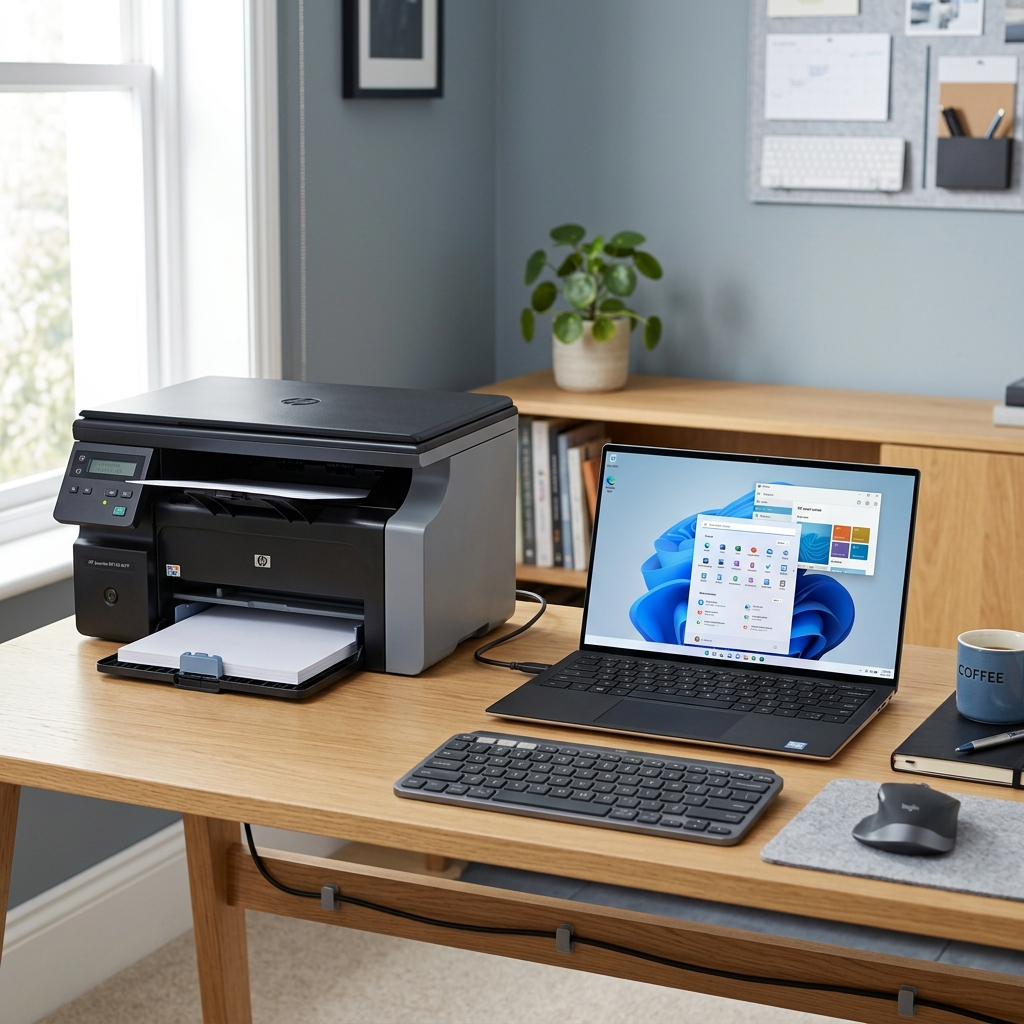
Old workhorse printers like the M1136 have a way of outliving several computers, and getting one talking to a brand-new Windows 11 machine can feel like introducing two generations that don't quite speak the same language.The good news up front: HP does provide a genuine Windows 11 driver for this printer.
It's not one of the models that's been fully abandoned.
The trouble usually isn't availability — it's a specific, easy-to-make choice during download that causes the installation to fail silently.
Quick-Fix Summary
Fast version:
- Download from HP's official driver page, not a third-party mirror site.
- Choose "Full Feature Software and Driver" — not the basic option. My uncommon tip, and the most common mistake.
- Run the installer before connecting the USB cable.
- Clear temp files if the installer behaves strangely or hangs.
- Run HP Print and Scan Doctor as a backup diagnostic and fix tool.
Fix 1: Get the Driver From HP Directly
Go to HP's official support and driver download site and search specifically for "HP LaserJet Pro M1136." Select Windows 11 as your operating system when prompted.
If HP's automatic detection tool fails to find a driver list (a known quirk on some regional versions of the support site), manually select Windows 11 from the operating system dropdown rather than giving up on the search.
Why this works: third-party driver aggregator sites, even ones that appear legitimate, can host outdated, modified, or incorrectly packaged versions of a driver.Going directly to HP's own page guarantees you're getting the genuine, current package specifically built. Tested for this exact printer and OS combination.
Fix 2: Choose "Full Feature Software and Driver," Not the Basic Option (My Uncommon Tip)
Here's the choice that trips up more people than anything else on this page. It's easy to make without realizing you're making it at all.
On HP's driver download page, you'll typically see more than one download option — something like a Basic Driver (sometimes labeled as an INF-only or print-only driver) and a Full Feature Software and Driver package. The basic option is smaller, faster to download, and looks perfectly sufficient if all you want to do is print.
Choose the Full Feature Software and Driver package instead, even if you only need basic printing.
Why this works: Windows 11enforces considerably stricter driver signing and validation requirements than older Windows versions did.
A bare-bones basic driver package for an older printer like the M1136 sometimes lacks the fully signed, properly bundled components that Windows 11 insists on before it will install and trust a print driver.The Full Feature package includes the complete, properly signed software bundle — print driver, scan components.
Supporting utilities all packaged together — which tends to install cleanly where the stripped-down basic driver silently fails, gets rejected partway through, or installs but never actually appears as a usable printer. This is precisely the kind of failure that looks like "the driver just won't install" when what's really happening is that an incomplete package is running into a validation wall you can't see happening.
If you've tried installing before and it seemed to go nowhere, this is very likely why.
Fix 3: Install Before You Connect
Run the downloaded installer before plugging in the USB cable. When the installer prompts you to connect the printer, that's your cue — not before.
Why this works: if Windows detects an unrecognized USB printer before the proper driver is installed, it will attempt to install its own generic driver automatically, and that generic driver can conflict with or block the real HP installer from completing correctly afterward.Installing first gives the real driver a clear run. Lets it take over cleanly the moment the printer is detected.
Fix 4: Clear Temp Files If the Installer Misbehaves
If the installer hangs, crashes, or behaves unpredictably partway through: press Windows key + R, type temp, and delete the contents of that folder. Repeat with %temp% and clear out the prefetch folder as well. Then try running the installer again.
Why this works: installer processes on Windows rely on temporary files during setup, and leftover fragments from a previous failed attempt — this driver or an unrelated one — can occasionally interfere with a fresh install attempt in ways that produce confusing, inconsistent failures. Clearing this out gives the installer a clean slate to work from.
Fix 5: Run HP Print and Scan Doctor
Download and run HP Print and Scan Doctor from HP's support site. It's a free official diagnostic tool that can detect driver issues, connection problems, and several other common causes automatically, sometimes resolving them without further manual steps.
Why this works: this tool was built by the people who wrote the driver, so it recognizes failure patterns specific to HP printers that a generic troubleshooting checklist can't anticipate.It's worth running either as your first step for a quick automated attempt. As a backup if manual installation continues to give you trouble.
When to Call a Professional
If you've downloaded the Full Feature package directly from HP, installed before connecting the cable, cleared temp files. Run Print and Scan Doctor — and the printer still won't install or print correctly on Windows 11 — try a different USB cable and port first, since cable failures are common on older hardware and cost nothing to rule out.
If that doesn't help, this specific printer-and-OS combination may have a genuine compatibility limitation worth confirming directly with HP support, since official support windows for older printer models do eventually narrow over time even when a driver technically still exists.
FAQ
Does HP still make a Windows 11 driver for the M1136?
Yes — this model has an official Windows 11 driver available directly from HP's support site, unlike some older printers that have been fully discontinued from driver support.
Why did my driver installation seem to complete but the printer doesn't work?
You may have downloaded the Basic or INF-only driver rather than the Full Feature Software and Driver package. Windows 11's stricter driver validation can silently reject the incomplete basic package. Reinstall using the Full Feature option specifically.
Should I connect the printer before or after running the installer?
After. Run the installer first and connect the USB cable only when prompted — connecting early can let Windows install its own generic driver first, which conflicts with the proper HP installation.
Is HP Print and Scan Doctor worth running even if I install manually first?
Yes, it's worth running either way — as a first quick attempt. As a diagnostic backup if manual installation runs into trouble. It catches some driver and connection issues automatically that manual troubleshooting can miss.
Getting the HP LaserJetM1136 driver working on Windows 11 almost always comes down to one choice: download the Full Feature Software and Driver package, not the stripped-down basic option, directly from HP's own site. Install before you connect the cable.
That one substitution — full package instead of basic — resolves more silent installation failures on this printer than anything else on this list.
Additional Resources
If you are still experiencing issues after trying the steps above, you may need to consult the official documentation or download the latest firmware (internal software) for your specific printer model. We recommend checking the following official resources:
