


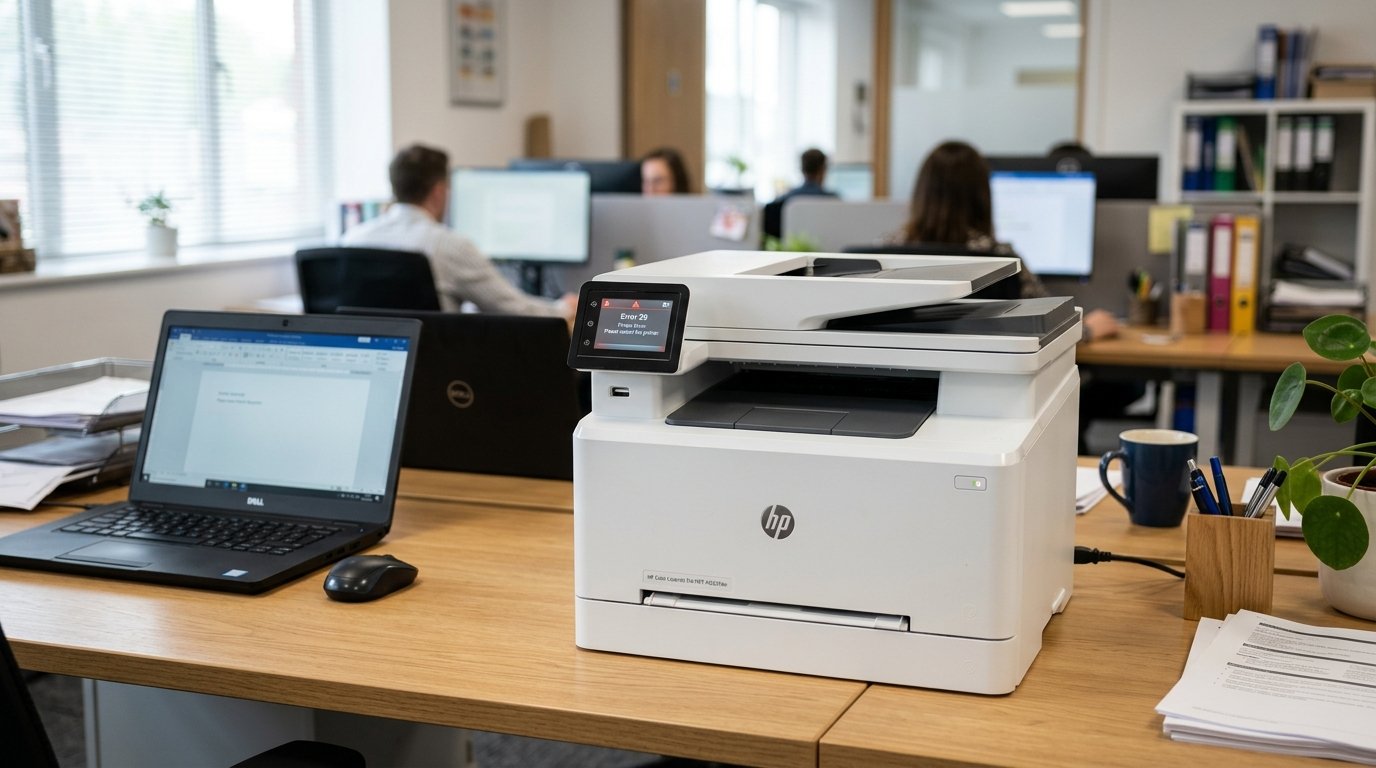
The Quick Answer
HP Color LaserJet M283fdw error 59 (59.C0) explained by a repair tech: what it means, 5 fixes, and the one-cartridge-at-a-time trick that finds the culprit.
When this error hits, it usually hits hard — the printer locks up. The screen just says to turn it off and back on, and doing exactly that doesn't help.
If your HP Color LaserJet M283fdw is throwing error 59 — almost always shown more precisely as 59.C0 — you're dealing with one of the more serious codes in HP's LaserJet lineup. I won't sugarcoat that upfront.
But before you assume the worst, there's a genuinely useful diagnostic trick that tells you, in about ten minutes. Whether you're looking at an easy fix or a real hardware problem.
Here's the order I work this error in, and why the last step matters more than all the others combined.
Quick-Fix Summary
Fast version:
- True power cycle — unplug from the wall, wait a full 60 seconds, sometimes longer.
- Open every cover and check thoroughly for jammed paper or debris.
- Confirm all covers are fully latched — sensors can misread a nearly-closed door as open.
- Isolate the cartridge, one at a time — the key diagnostic step. My uncommon tip.
- Update firmware (internal software) through the printer's built-in web page.
What 59.C0 Actually Means
The "59" prefix on HP LaserJet printers points to an internal motor fault. The "C0" suffix narrows it down further: this specific code is known as a developer motor rotation error — meaning the printer's internal motor, responsible for driving parts of the toner development process.
Isn't turning the way its sensors expect it to.
Why this framing matters: a motor rotation error can have two very different root causes. Sometimes something is physically resisting the motor's rotation — a jam.
A stuck cartridge, a bad drum unit dragging against the mechanism — and clearing that obstruction fixes everything. Other times, the motor itself or its drive components have genuinely failed.
Your job over the next few fixes is figuring out which one you're dealing with. Because they lead to very different outcomes.
Fix 1: The True Power Cycle
Turn the printer off, then unplug it from the wall outlet completely — not just the printer's own power switch. Leave it unplugged a full 60 seconds; if the error returns immediately.
Try unplugging it for several minutes instead, which some stubborn cases genuinely need. Plug back in and power on.
Why this works: a full unplug forces the printer's internal systems to reset from zero, clearing any transient motor sensor glitch that a simple power-button restart might not fully reset. This resolves a meaningful share of 59.C0 cases outright, especially ones that appear only occasionally.
Fix 2: Inspect Every Cover, Thoroughly
Open the front cover, the rear door, the toner access panel, and the duplexer (if your model has one attached). Look carefully along the entire paper path for jammed or torn paper.
And check for anything foreign — bent staples, paper clips, or debris — that might physically interfere with internal moving parts.
Why this works: a scrap of paper or foreign object resisting the motor's normal rotation is read by the printer's sensors as exactly this kind of rotation fault. Clearing it removes the physical resistance the motor was straining against.
Fix 3: Confirm Every Cover Is Fully Latched
This sounds identical to Fix 2, . It isn't — check that every cover and door you just opened is now completely closed and latched, not just resting shut. Push firmly on each one until you feel it seat.
Why this works: several HP LaserJet models will throw a 59-series error if internal door sensors detect a cover as even slightly open. Treating an unlatched door as a safety interlock rather than a rotation fault specifically — but the error code that surfaces can look identical either way.
This is an easy step to skip past too quickly, and it's worth its own deliberate check.
Fix 4: Isolate the Culprit Cartridge (My Uncommon Tip)
Here's the diagnostic trick that separates "this is fixable in five minutes" from "this printer needs real repair," . It's the single most useful thing you can do before calling anyone.
Power off the printer and remove all toner cartridges. Power the printer back on with the cartridge bay completely empty and see whether the error still appears.
If it clears with no cartridges installed, power off again and reinstall just one cartridge, closing the access door fully before powering on. Test.
If the error stays clear, power off, add the next cartridge. And repeat — one at a time, testing after each addition — until the error reappears.
Why this works: this error can be triggered by a single failing cartridge or drum unit dragging against the motor's normal rotation. Rather than a fault in the motor itself.
Testing every cartridge simultaneously tells you nothing about which one is responsible; testing them one at a time pinpoints the exact culprit with certainty. If the error only returns once a specific cartridge goes in.
You've found your answer — replace that one cartridge, and the printer is likely fine. If the error appears even with the bay completely empty, that's a much stronger signal pointing toward the motor or drive assembly itself, .
It tells you clearly that Fix 5 and professional support are your real next steps rather than more troubleshooting. This single test turns a frustrating guessing game into a definite answer.
And it's the step most people skip because it takes ten patient minutes rather than one quick click.
Fix 5: Update the Firmware (internal software)
Find your printer's IP address (through its control panel network menu. Or a printed settings page) and enter it into a browser to open the Embedded Web Server.
Check for and install any available firmware (internal software) update. Or use the HP Smart app / HP Toolbox software on a connected computer to do the same.
Why this works: some 59.C0 cases stem from sensor misreads or internal logic errors that HP has addressed in later firmware (internal software) releases rather than a physical fault at all. It's a low-effort step worth doing before assuming hardware failure, particularly if your printer hasn't been updated in a long time.
When to Call a Professional
If the error persists with the cartridge bay completely empty, or the one-at-a-time isolation test doesn't identify a single responsible cartridge, you're most likely facing a genuine developer motor or drive assembly fault — several experienced technicians describe this specific failure mode as one where the printer typically needs the affected assembly replaced rather than simply reset. Contact HP support with your serial number .
Check current warranty status; if the printer qualifies, this is a covered repair category. Out of warranty, get an honest repair quote for the motor assembly and weigh it against a comparable new unit — on an office LaserJet like the M283fdw.
That math can go either way depending on the quote, so it's worth actually getting the number rather than assuming.
FAQ
What does error 59 mean on an HP Color LaserJet M283fdw?
It's a motor fault, most specifically shown as 59.C0 — a developer motor rotation error. Meaning an internal motor isn't turning the way the printer expects. It can stem from a physical obstruction or a genuine motor/drive fault.
How do I know if it's a bad cartridge or a real motor problem?
Remove all cartridges and power on with the bay empty. If the error clears, reinstall cartridges one at a time. Testing after each, until the error returns — that identifies the specific faulty cartridge. If the error persists with no cartridges installed at all, suspect the motor itself.
Will a factory reset fix error 59.C0?
Sometimes, if the cause is a temporary internal logic error rather than a physical or hardware fault. It's worth trying via Setup → Printer Maintenance → Restore on the control panel, but don't expect it to fix a genuine motor issue.
Is error 59.C0 expensive to repair?
It depends on whether it's the motor/drive assembly itself or something simpler like a bad cartridge. Get an actual repair quote before deciding — a bad cartridge costs far less to fix than a motor assembly, and the isolation test in this guide tells you which one you're facing.
HP Color LaserJet M283fdw error 59 — nearly always 59.C0 — sits at the more serious end of HP's error codes, but it isn't always a death sentence. Power cycle properly, check every cover, and above all, run the one-cartridge-at-a-time isolation test before you assume the worst.
It's the difference between replacing a fifty-dollar cartridge . Facing a genuine motor repair, and it's worth the ten minutes every time.
Additional Resources
If you are still experiencing issues after trying the steps above. You may need to consult the official documentation or download the latest firmware (internal software) for your specific printer model. We recommend checking the following official resources:
