


The Quick Answer
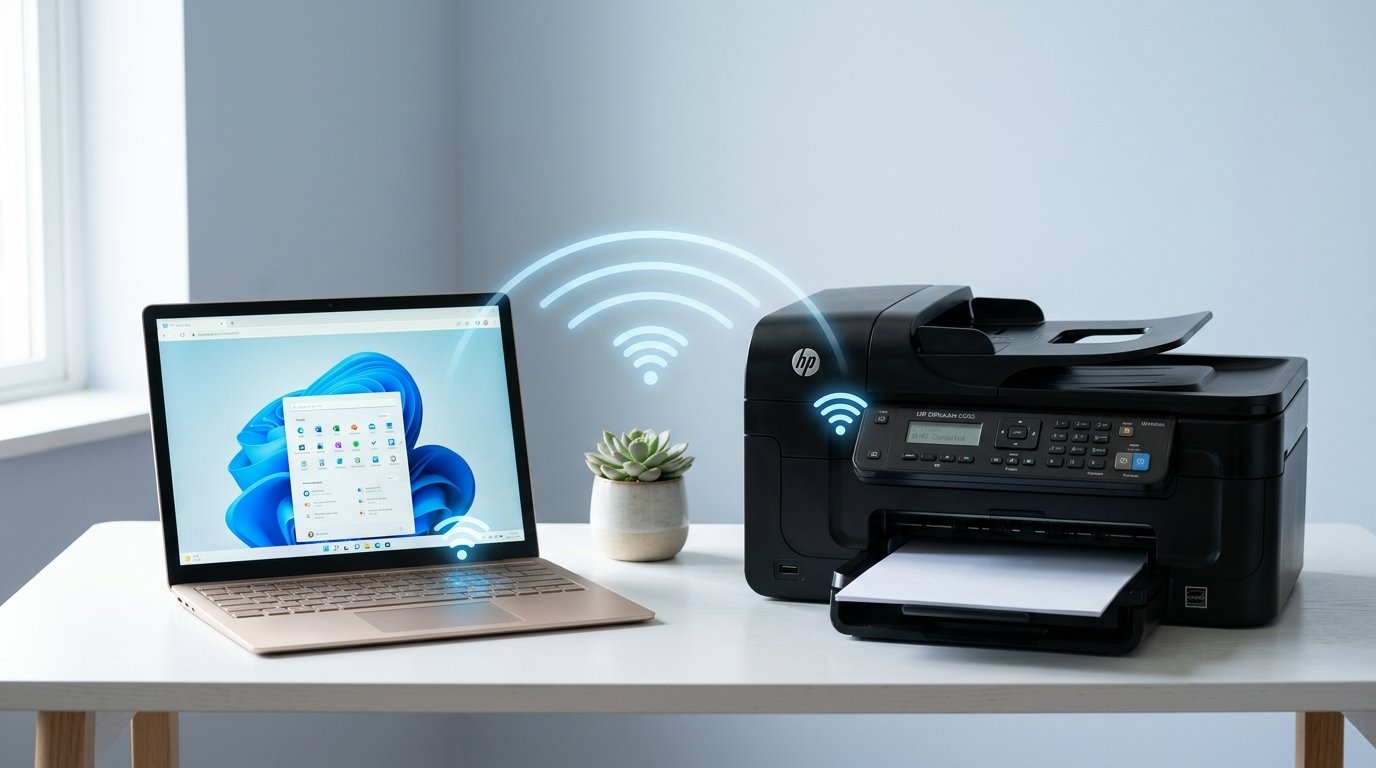
Setting up an HP OfficeJet 6500 on Windows 11? A repair tech explains why you should skip searching for an HP driver. Use Windows' built-in method instead.
The OfficeJet 6500 is over ten years older than Windows 11. This age gap matters a lot.
Many setup guides miss this point. You might be looking for an official HP driver for Windows 11.
That driver probably does not exist. Do not worry, this is not a dead end.
There is a very good way to fix this. It does not need HP to release anything for this setup.
Quick Summary
- Check HP's support page honestly — See if a Windows 11 driver exists for your exact 6500 model.
- Connect the printer to your Wi-Fi network first — Do this on the printer, not the computer.
- Skip searching for an HP driver if none exists — Use Windows' built-in generic network method. This is my uncommon tip.
- Add the printer using its IP address — Do this directly through Windows' tools.
- Test basic functions — Accept that some HP features may not work.
Step 1: Check What HP Actually Offers
Go to HP's official support site. Search specifically for "OfficeJet 6500". This model has several versions, like 6500, 6500A, and 6500A Plus. Search your exact model number if you see it on the printer. Select Windows 11 as your OS. See what HP offers.
Why this matters: Old printers often stop getting official driver updates. HP's page might show nothing for Windows 11.
It might give you a basic driver instead of a full one. Checking this first tells you what to expect.
You avoid wasting time searching for a driver that does not exist.
Step 2: Connect the Printer to Wi-Fi Directly
Use the OfficeJet 6500's own control screen. Find the wireless setup wizard under Network or Wireless Setup. Connect the printer to your home Wi-Fi network. Enter your network name and password on the printer screen.
Why this works: This step happens only on the printer. It does not need your computer or any driver software. Once done, the printer is on your network. Any device can find it, no matter what happens on the Windows 11 side.
Step 3: Skip Searching for an HP Driver (My Uncommon Tip)
This idea saves you time and stress. It goes against what most people do for a new device. Most people try to find the maker's official software first.
Stop searching if HP does not have a real Windows 11 driver for your 6500 model. Do not hunt through old forums or bad sites.
You will waste time looking for a Windows 11 driver that does not exist. You might also install a virus from a bad site.
Instead, use Windows 11's built-in generic network printing feature. This does not need any HP software.
Modern Windows, including Windows 11, can add network printers. It uses basic printing rules.
It uses generic drivers made by Microsoft, not HP software. The OfficeJet 6500 is a standard printer.
The generic method works well for basic printing. You can send a file and it will print correctly.
You do not need any HP software.
Why this works: Printers this old use standard printing languages. Windows knows these languages natively.
This is why printers from many makers work well with any OS. This was true even before smart maker software became common.
You are not working around a missing feature. You are using a standard link method that was always there.
It is just less common now.
Step 4: Add the Printer Using Its IP Address
Find the printer's current IP address on the OfficeJet 6500 screen. You can usually see it on the wireless screen after Step 2.
You can also print a network configuration page. On your Windows 11 computer, go to Settings → Bluetooth & devices → Printers & scanners → Add device.
Click Add manually if the printer does not appear. Choose Add a printer using a TCP/IP address or hostname.
Type the exact IP address.
Windows will find the printer and pick a driver automatically. It is often a generic driver, not an HP one. This is exactly what should happen after Step 3.
Why this works: This method skips the driver problem. It connects directly to the printer's known network address. Windows handles the link using rules the printer knows natively. You do not need maker software that might not exist for Windows 11.
Step 5: Test and Accept Some Feature Limitations
Print a test page to make sure basic printing works. Note that some HP features may not work. You might miss detailed ink levels or some maintenance tools. You might not be able to scan through the HP app. Basic printing will still work well through this generic link.
Why this matters: Knowing this now stops anger later. You lose some maker features for a good, stable printing connection. The printer is old, and HP does not make a full driver for this OS anymore. Basic printing is all most people need. This is a very fair trade.
When to Call a Professional
Fix the Wi-Fi first if the printer will not connect in Step 2. This is a basic error.
Do not worry about Windows 11 compatibility yet. Make sure the printer's Wi-Fi radio works.
Check if it can connect to the network at all. What if Wi-Fi connects but Windows cannot link to the IP address?
Ensure the IP address is correct. Call HP support if it still fails.
Ask if this 6500 model has other Windows 11 limits besides lacking a driver.
FAQ
Does HP make an official Windows 11 driver for the OfficeJet 6500?
Check HP's support site directly for your exact model. Many printers this old have no official Windows 11 driver. Windows' built-in generic network method is your best choice.
Will I lose any features by using Windows' generic driver instead of an HP one?
Some HP features like detailed ink tracking or app-based scanning may not work. Basic, good printing usually works well. This is because it uses standard printing rules the printer knows natively.
How do I find my printer's IP address for manual setup?
Look at the printer's wireless screen after connecting to Wi-Fi. You can also print a network configuration page. Find this under a Reports or Setup menu.
Is it safe to use a generic Windows driver instead of a manufacturer one?
Yes. Windows' generic printer drivers are made by Microsoft. They are a safe way to link to printers. They are very good for old hardware that lacks a maker driver for modern systems.
Setting up an HP OfficeJet 6500 on Windows 11 is easy if you know what to do. HP likely has not made a driver for this.
Connect the printer to Wi-Fi directly on its screen. Add it to Windows using its IP address.
Use Windows' generic network printing tools. Do not search endlessly for an HP driver that does not exist.
This is the correct, good path for hardware this age.
Additional Resources
Check the official guides or download the newest firmware if you still have issues. We recommend checking these official links:
