


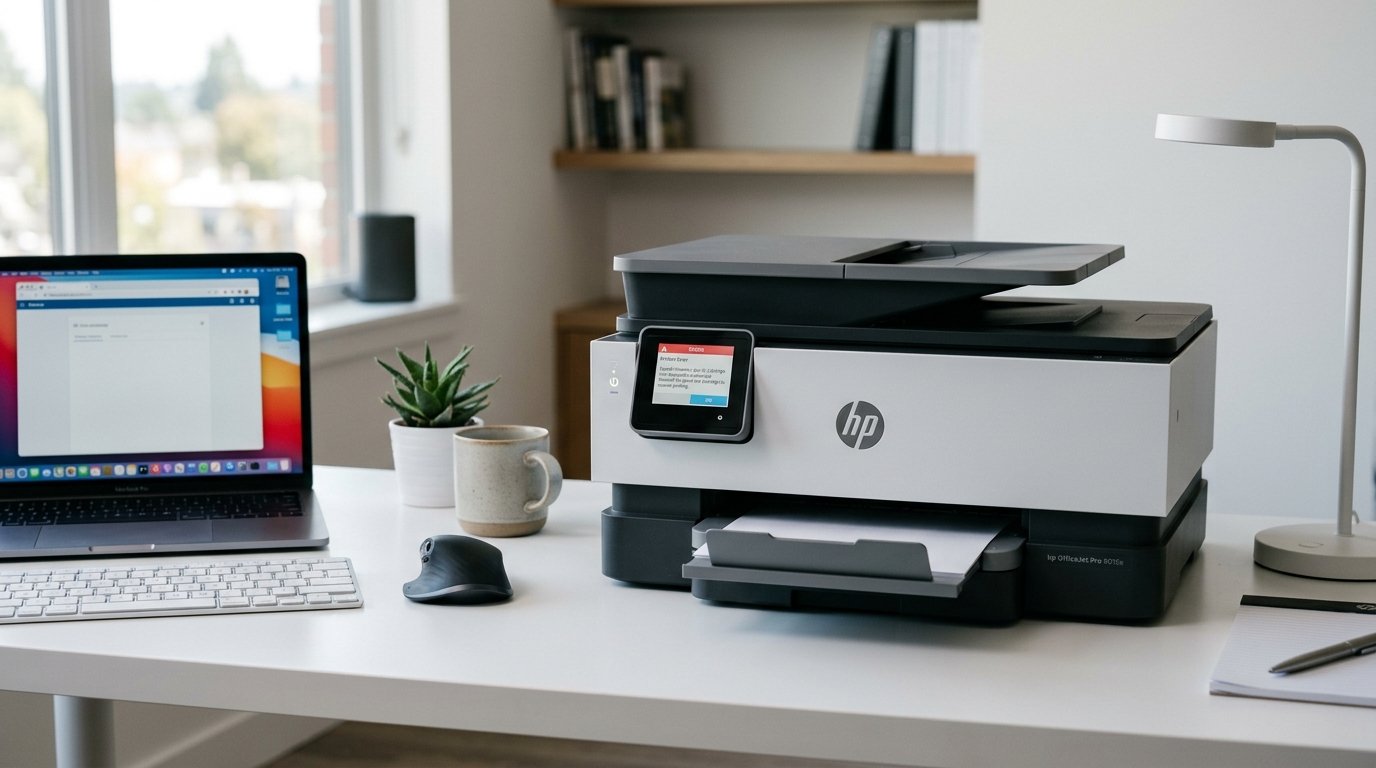
That string of numbers and letters looks like it means something specific and terrifying. It doesn't, not exactly.The HP OfficeJet Pro 9015e error 0x610000f6 is HP's catch-all code for "something interrupted the print carriage.
Ink system," and in my repair shop it turns out to. Be one of about five ordinary causes almost every time. is actually the least likely explanation, not the most likely — which is good news.
Because you're probably five minutes from printing again.
Let's work through the fixes in the order I'd try them on my own bench. And I'll finish with a cause almost nobody talks about. Because it's the one that keeps this error coming back after every other fix has "worked.
- — unplug from the wall, not just the power button.
- jammed paper or stuck debris.
- for leftover orange tape or plastic clips.
- diagnostic tool.
- — the fix that ends recurring cases for good.
carriagethat slides back and forth carrying the print cartridges. Riding along a rail behind a thin, clear plastic strip with tiny black tick marks printed on it.
That strip is how the printer's brain tracks exactly where the carriage is at every instant.Error 0x610000f6 fires whenever the printer's internal system loses confidence in. Carriage's position or motion — whether the true cause is a paper scrap in its path.
A stuck cartridge, or something dirtying its tracking strip.
carriage confusion" error, not a specific hardware death sentence, changes how you troubleshoot. You're not hunting for one broken part. You're hunting for whatever is interrupting a mechanism that's almost certainly fine.
Turn the printer off with its power button. Wait for it to fully shut down — you'll usually hear or feel it settle. , not just the printer's back panel, and leave it unplugged a full 60 seconds. Plug back in and power on.
carriage position still sitting in memory.Pulling the cord from the wall forces a true hardware reset —. The printer wakes up with zero assumptions about where anything is.
And it has to figure the carriage's position out from scratch. This single step clears roughly a third of the 0x610000f6 cases that land on my bench.
Open the cartridge access door. carriage by hand — it should move with light, even resistance.Look closely along the entire rail for a torn scrap of paper. A stray label, a paperclip, or dust clumps thick enough to matter.Check both ends of the rail, not just the middle.
Jams love to hide at the edges where you're not looking.
the printer can't distinguish "genuinely broken" from "physically blocked. sensorsI've pulled scraps out of 9015e-class printers that owners swore were empty. Inside — debris hides well in a dim cartridge bay.
If this error started right after installing new cartridges, pull them back out and inspect them closely.New HP cartridges ship with orange protective tape over the contacts or nozzle. Sometimes tucked under a small plastic clip that's easy to miss in a quick unboxing.
Peel off anything orange or plastic, then reseat the cartridge firmly until it clicks.
the tape is there to protect the cartridge in shipping. And it does its job a little too well — it also blocks the.
Electrical contacts the printer uses to identify and communicate with the cartridge. carriage fault from the printer's side, because the carriage can't do its job holding a cartridge it can't talk to.This is an embarrassingly common cause, and I say that with affection — I've missed it myself. Early on, before I learned to check first.
from HP's support site on the computer connected to your printer. connection status, and known error patterns, and it can often clear stuck states and outdated drivers automatically.
some 0x610000f6 triggers live on the software side — a corrupted print. Job stuck mid-transmission, or a driver miscommunicating with the printer. , so it recognizes patterns a general troubleshooting guide can't. It's the closest thing to a free house call.
Here's the fix that solves the stubborn, recurring version of this error — the one where you clear it. Print fine for a day, and it's back tomorrow. repair-tech-level detail.
Remember that thin clear strip with the tick marks I mentioned earlier? , and it runs along the carriage rail, usually visible as a clear ribbon just behind where the cartridges sit. for you to find.
With the printer powered off, locate the strip and wipe it gently. Once, along its length with a dry microfiber cloth. A lightly dampened cotton swab — water only, no alcohol, no cleaner. Don't scrub, don't bend it, and don't touch it with anything but soft cloth.
you're not fixing a broken part; you're restoring a sensor's ability to read a part that was never broken.This single strip is invisible to almost everyone troubleshooting this error. Because the fixes people find online stop at "check for jams. wipe is the difference between a customer who leaves happy today.
A customer who's back next month with the same complaint.
, drive belt, or a genuine sensor fault is the more likely remaining cause.Contact HP support with your printer's serial number; the 9015e carries HP's standard warranty coverage. And carriage assembly issues are a documented repair category.Out of warranty, get a repair quote and weigh it honestly against a new unit — inkjet.
All-in-ones in this class are affordable enough that major mechanical repairs rarely make financial sense. And I'd rather tell you that upfront than after a diagnostic fee.
FAQ
What does error 0x610000f6 mean on an HP OfficeJet Pro 9015e?
issue, or dirty carriage sensor, not a specific hardware failure.
Why does this error keep coming back after I clear it?
Ink mist builds up over time and confuses the position sensor. A gentle dry wipe usually ends the cycle.
Can I fix this without opening the printer?
Yes, in most cases. and check for jammed paper through the cartridge door — no tools or disassembly required for either.
Is this error covered by HP's warranty?
If it turns out to be a genuine mechanical fault after basic troubleshooting. Yes — the 9015e carries standard HP warranty coverage. repair.
The HP OfficeJet Pro 9015e error 0x610000f6 sounds like a death sentence and almost never is one. nobody told you about. Five fixes, most of them under a minute, and the odds are strongly in your favor.
download the latest firmware (internal software) (internal software) (internal software) (internal software) for your specific printer model.
