


The Quick Answer
HP Tango X printing black and white instead of color? A repair tech explains the driver mismatch behind the classic phone-works-computer-doesn't pattern.
Print from your phone, color comes out perfect. Print the exact same document from your laptop, and it's black. and white — no error, no explanation, grayscale not even checked as an option anywhere you look.
If your HP Tango X is not printing color correctly,. and especially if you recognize that phone-versus-computer pattern, you're dealing with one of the most consistent. well-documented complaints about this specific printer. The good news: it's a driver setup issue, not a hardware problem,. and it has a real fix.
Quick-Fix Summary
Fast version:
- Double-check the obvious settings — grayscale, black & white toggles, in every app you've tried.
- Run a Print Quality Diagnostic through HP Smart to rule out an actual ink problem.
- Check ink cartridge levels and seating honestly.
- Remove and re-add the printer on your computer, choosing the correct driver deliberately — my uncommon tip. and the fix for the phone-works-computer-doesn't pattern.
- Try a different app to isolate whether it's app-specific or system-wide.
Fix 1: Rule Out the Obvious First
In every application you're printing from. open the print dialog and look specifically for "Black & White," "Grayscale," or a print quality/economy setting that might be forcing monochrome output. Check this in more than one app — a document editor, a PDF viewer,. and a web browser — since some remember settings independently of each other.
Why this works: it sounds too simple to be the answer, but it's worth ruling out cleanly and completely before chasing anything more complex. because different applications sometimes store their own separate print preferences that don't sync with each other or with the printer driver's own default.
Fix 2: Run a Print Quality Diagnostic
Open the HP Smart app, select your Tango or Tango X, and run a Print Quality Diagnostic Report. This test page prints directly from the printer's own internal system, bypassing your computer's driver. and any application settings entirely.
Why this works: this test tells you immediately whether the printer's actual hardware — ink, nozzles, printhead — is capable of producing color at all. If the diagnostic page prints in full. vibrant color, you've just proven the ink. and printhead are completely healthy.
This means your problem lives somewhere in the software chain on your computer, not inside the printer itself.
Fix 3: Check Cartridge Levels and Seating
Through HP Smart, confirm each color cartridge shows adequate ink, and physically check that each cartridge is fully seated and clicked into place.
Why this works: while less common as the cause of this specific symptom pattern, a genuinely low or improperly seated color cartridge can occasionally get skipped by the printer in favor of a black-only fallback rather than producing weak or spotty color — ruling this out is quick and removes one more variable before you move to the driver-level fix that resolves most cases.
Fix 4: Remove and Re-Add the Printer With the Right Driver (My Uncommon Tip)
Here's the fix for the specific, extremely common pattern that brings people to this article in the first place: color prints beautifully from a phone through the HP Smart app, but the same document from a Mac or Windows computer prints in black and white every time, with grayscale unchecked and no visible setting explaining why.
The Tango X is a minimalist printer. It is largely controlled by apps and voice commands.
It has almost no physical control panel. The design relies on software instead of buttons.
Computer setup is often completed quickly through a generic driver path like AirPrint on Mac. This skips the full native driver package of the printer.
This happens especially if you add the printer quickly using the built-in 'Add Printer' function. You should use a dedicated installer instead.
A generic AirPrint or basic driver connection might default to black and white settings. It can also fail to show full color controls.
Your phone connects through the HP Smart app. This uses a completely different and direct two-way connection.
It is not affected by generic drivers.
To fix it properly:
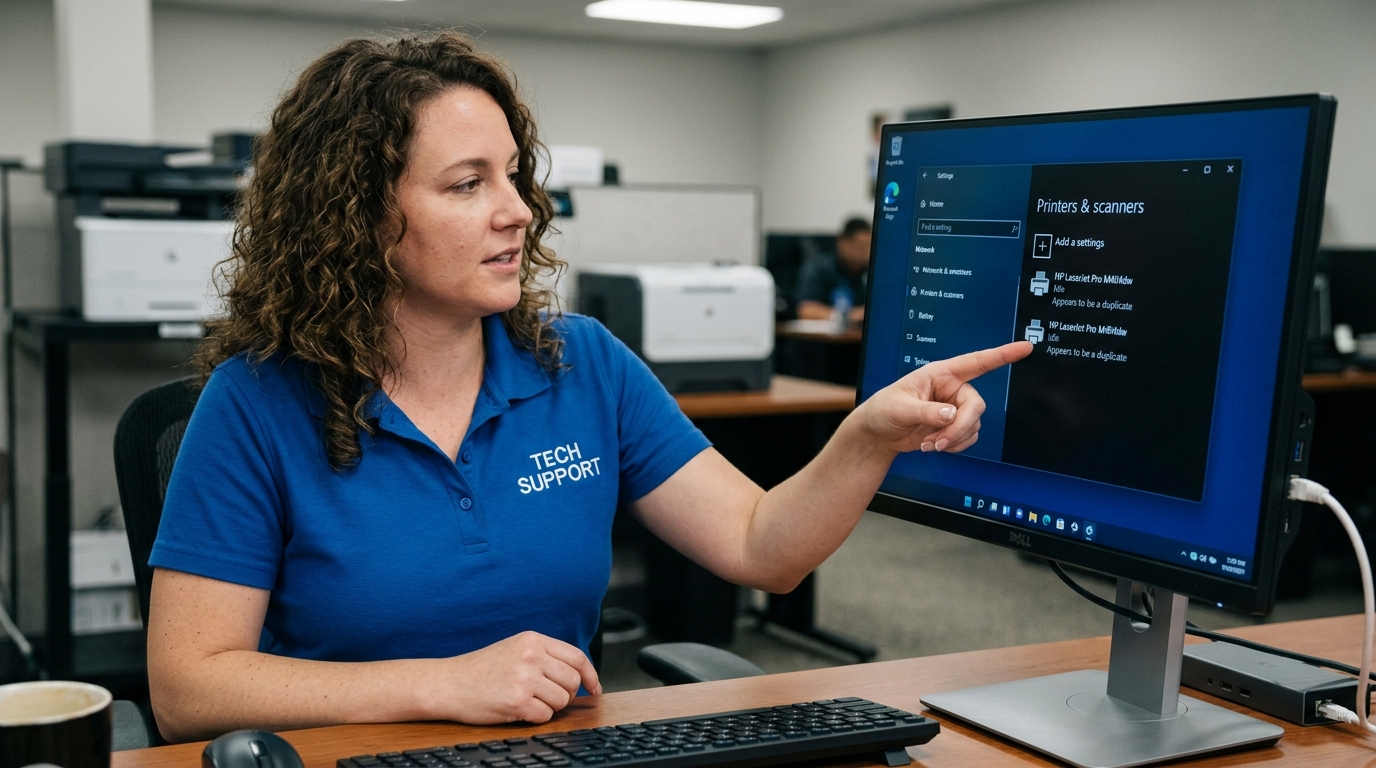
- Remove the existing printer entry from your computer (Mac: System Settings → Printers & Scanners. select the Tango X, click the minus button; Windows: Settings → Printers & scanners, select it, click Remove).
- Download and install the full HP driver package for the Tango X from HP's support site — not just relying on AirPrint or Windows' automatic generic driver detection.
- Re-add the printer, and when prompted for which driver or "Use" option to select, deliberately choose the specific HP Tango X driver rather than a generic AirPrint or "Secure AirPrint" option, if both appear in the list.
- Print a test document in color from the same app where it previously failed.
Why this works: your phone was never actually experiencing the same setup as your computer — it communicates with the printer through the app's own dedicated protocol. sidestepping your operating system's printer driver architecture entirely. Your computer, by contrast, depends entirely on whichever driver got installed during setup,.
and a generic, quickly-configured driver simply may not expose or correctly default to full color the way the printer's actual dedicated driver does.
This explains the pattern perfectly: it was never that your computer was "worse" at printing color — it was working with fundamentally different software than your phone the entire time. and once you install. and select the real driver, both devices are finally working from the same accurate picture of what this printer can do.
Fix 5: Try a Different Application as an Isolation Test
If re-adding the printer with the correct driver doesn't fully resolve it. try printing the same document from a completely different application than the one you've been testing with — for instance. if you've been testing from a PDF viewer. try a basic text editor or your browser's own print function instead.
Why this works: this isolates whether the remaining problem is specific to one particular application's own print settings. This sometimes need their own separate adjustment even after the driver itself is correctly configured, versus a genuinely system-wide issue that would show up identically no matter which app you print from.
When to Call a Professional
If the Print Quality Diagnostic page itself prints in black and white or with visibly weak, patchy color despite full cartridges, that points toward an actual hardware issue — clean the printhead through HP Smart's maintenance menu, and if color still doesn't appear on that internal diagnostic page specifically, contact HP support with your serial number, since this now points toward a printhead or cartridge fault rather than a driver problem.
If the diagnostic page prints beautifully in color. but your computer still can't manage it after a full driver reinstall, the issue may be specific to your operating system version — check for the latest HP driver release matching your current OS.
since driver compatibility updates roll out regularly.
FAQ
Why does my HP Tango X print color from my phone but not from my computer?
Your phone connects through the HP Smart app's own direct protocol, while your computer relies on whatever driver was installed during setup — often a generic AirPrint connection that doesn't expose full color the way the Tango X's actual dedicated driver does. Removing and re-adding the printer with the correct driver usually resolves it.
How do I know if this is a driver problem or an actual ink problem?
Run a Print Quality Diagnostic report through the HP Smart app. This prints directly from the printer's internal system, bypassing your computer entirely — if it comes out in full color. your hardware is fine. and the issue is software-side.
Do I need to fully uninstall the printer before re-adding it?
Yes. removing the existing entry first is important — simply adding it again without removing the old one can leave the previous. possibly generic driver connection still active alongside the new attempt, causing confusing or inconsistent results.
Is AirPrint bad for the Tango X specifically?
Not inherently, but a quick AirPrint-only setup sometimes doesn't expose the printer's full feature set the way its dedicated driver does. If you're having color issues. choosing the specific HP Tango X driver during setup rather than relying on AirPrint's generic connection is worth doing deliberately.
HP Tango X not printing color correctly. especially when your phone handles color just fine, comes down to a driver mismatch almost every time — your computer was quietly working from different. more limited software than your phone the whole time. Remove the printer, install the real driver package,. and re-add it deliberately choosing the Tango X's own driver.
That one setup correction usually ends the mystery for good.
