


The Quick Answer
firmware (internal software) updates are generally low-risk if you do them right. Learn the pre-update checklist, how to update via USB, and what to do if a printer gets bricked.
firmware (internal software) updates on Bixolon printers can add features, fix bugs, and improve stability. They can also permanently ruin a printer if interrupted at the wrong moment. The good news: with a bit of preparation. The right procedure, firmware (internal software) updates are usually straightforward and low-risk.
Here's how to do it safely, and how to recover if something goes wrong.
Should You Actually Update?
Before touching firmware (internal software), ask whether you should update at all. The old IT principle applies: if it isn't broken, don't fix it.
Good reasons to update:
- Security vulnerability specifically addressed by the update
- A feature you actually need is added
- Bug affecting your workflow is documented as fixed
- Compatibility required by newer SDK version, POS software, or driver
Poor reasons to update:
- "Just to have the latest version"
- Random advice from a forum
- Assuming the update will fix an unrelated problem
- Because a Windows update notification suggested it
firmware (internal software) updates are generally low-risk but not zero-risk. Update only when there's a specific reason to do so.
Pre-Update Checklist
Do all of these before starting:
Verify your current firmware (internal software) version. Print a self-test page to see the current version. This tells you what you have and lets you confirm the update actually applied afterward.
Verify the update is for your exact model. firmware (internal software) is model-specific in a way that drivers aren't quite as strict about. A firmware (internal software) file for the SRP-350 will not work on the SRP-350III,. Attempting to force it can brick the printer.
Download the update from the official Bixolon support site only. Third-party sites sometimes host older or modified versions. Only use firmware (internal software) directly from Bixolon.
Read the release notes. The notes tell you what's changed and often include known issues or requirements specific to that firmware (internal software) version.
Ensure stable power.For countertop models, use a UPS. If available, or at minimum ensure you're not updating during an unstable power situation (thunderstorm, known intermittent power). battery is at least 50% charged and plug in the charger before starting.
Close all applications that might communicate with the printer. POS software, driver utilities, anything sending print jobs. firmware (internal software) update.
Never update firmware (internal software) wirelessly if a USB update is available. Wired connections are more reliable and less likely to be interrupted mid-transfer.
Update Procedure
The exact procedure varies by model, but the general shape is consistent:
Via Bixolon Utility Software (Most Common)
- Connect the printer to a computer via USB
- Launch the appropriate Bixolon utility (Unified POS Utility, Unified Label Utility, or model-specific tool)
- Confirm the utility recognizes the printer
- Navigate to the firmware"/polaroid/drivers-software-firmware (internal software)/polaroid-hi-print-firmware (internal software)-update-factory-reset-guide" title="Polaroid Hi-Print firmware (internal software) Update & Factory Reset Guide">firmware (internal software) update section
- Select the downloaded firmware (internal software) file
- Confirm the model and version match your printer
- Start the update
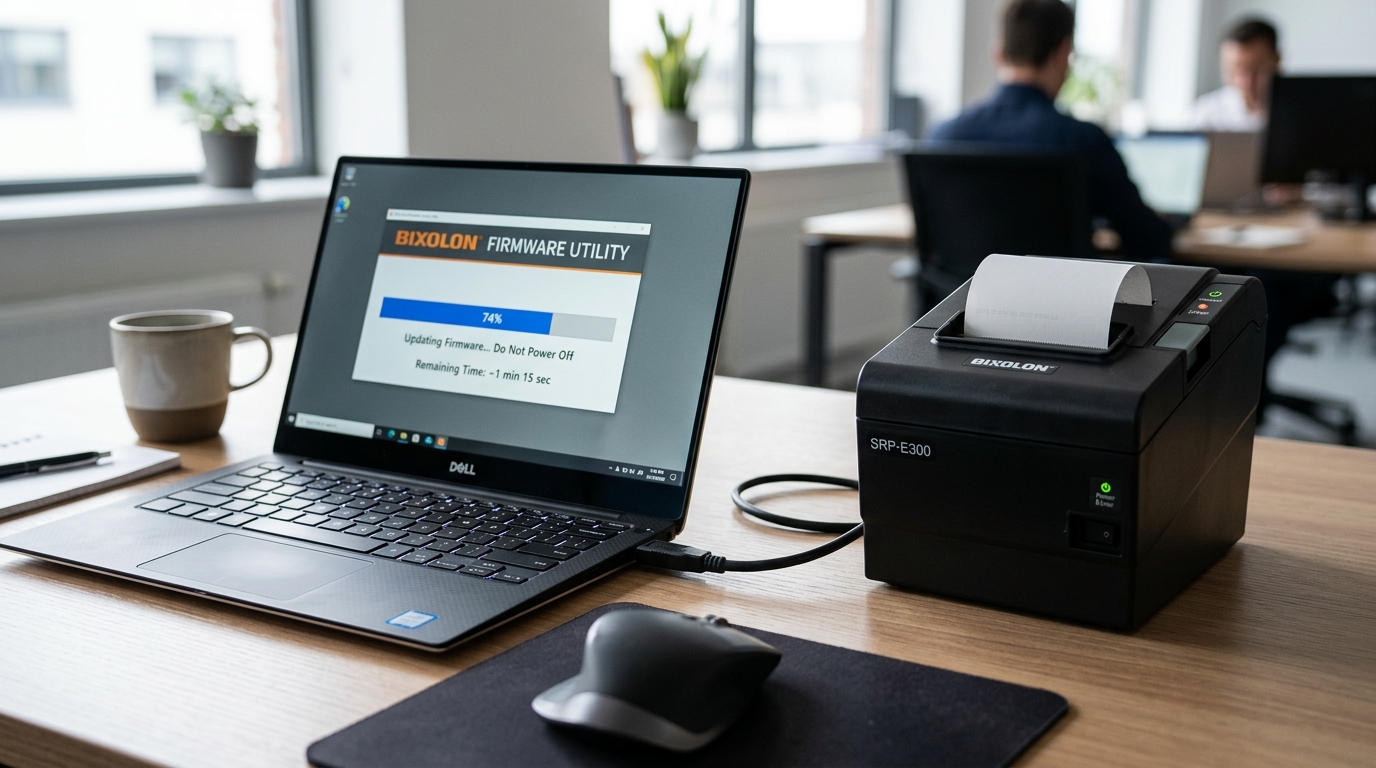
- Do not interrupt — wait for the utility to report completion
Via USB Storage (XD5-40 and Similar Models)
Some models support firmware (internal software) updates from a USB storage device:
- Copy the firmware"/kodak/setup-installation/kodak-printer-firmware (internal software)-update-failed-loop" title="Fix Kodak Printer firmware (internal software) Update Frozen or Failed Loop">firmware (internal software) file (
.flsextension for many Bixolon models) into a specific folder on the USB storage device.F:\FW_DOWNLOAD - Connect the USB storage to connectivity-issues/dymo-connect-not-detecting-printer" title="Fix DYMO Connect Not Detecting Printer (USB & Wi-Fi)">USB storage to the printer's USB host port
- Navigate to Filesng>Files → F/W Update in the printer's setting menu
- Select Start using Function Button 1
- Wait for "F/W Update" confirmation and completion
What NOT to Do During an Update
- Do not power off the printer. This is the most common way firmware (internal software) updates get bricked.
- Do not unplug USB or network cables. Any interruption in the transfer is potentially fatal.
- Do not close the utility software. Even if the progress bar seems stuck, wait.
- Do not restart your computer. Updates typically take a few minutes; interrupting for any reason is risky.
If the update genuinely seems stuck for an unusually long time (well past what the. Release notes indicate), still don't interrupt. Give it at least 15-20 minutes before considering any recovery action.
After the Update
Once the utility reports success:
- Wait for the printer to reboot. Most models reboot automatically after a firmware (internal software) update.
- Print a new self-test. Verify the firmware (internal software) version now matches what you installed.
- Test basic operations. Print a sample document, run a self-test, cut a receipt (or feed a label) to confirm the mechanical side is working normally.
- Test your POS workflow. The actual acid test — put through a real transaction end-to-end.
- Reconfigure settings if needed. Some firmware (internal software) updates reset specific settings (network settings, print density, calibration). Check and restore as needed.
What If Something Went Wrong
Recovery depends on how far the update got before failing.
Update Failed But Printer Still Powers On
This is the best-case failure scenario. firmware (internal software), or may be in a recoverable state.
- Power cycle the printer-codes-alerts/brother-printer-error-50-fuser-unit" title="Brother Printer Error 50 Fuser Unit: Troubleshooting & Fixes">Power cycle the printer (full 30-second off)
- Print a self-test — check what firmware (internal software) version is showing
- If the old version is still shown, the update didn't actually apply — try again with the same or a different firmware (internal software) file
- If a partial or unusual version is shown, the printer may be in an intermediate state; contact Bixolon support before trying anything else
Update Failed and Printer Won't Boot
Signs of this: power light behaves abnormally, printer doesn't respond to buttons, no self-test possible. This is the concerning scenario, but not always terminal.
- Try a full 5-minute power drain (unplug completely, wait 5 minutes, replug)
- If the printer still won't boot, check if your model has a firmware (internal software) recovery mode (usually accessed by holding specific buttons during power-on — check your manual)
- If a recovery mode existsers-software-firmware (internal software)/how-to-downgrade-epson-firmware (internal software)-third-party-ink-unrecognized" title="Downgrade Epson firmware (internal software) (Fix Unrecognized Ink Cartridges)">recovery mode exists, follow the recovery procedure in your model's documentation
- If no recovery mode is rivers-software-firmware (internal software)/how-to-downgrade-epson-firmware (internal software)-third-party-ink-unrecognized" title="Downgrade Epson firmware (internal software) (Fix Unrecognized Ink Cartridges)">recovery mode is available or it doesn't work, contact Bixolon support — some firmware (internal software) corruption requires factory-level service to recover
The good news: for most models with USB update capability, even a bricked printer can often be recovered by service technicians because the underlying hardware is intact — it's just the firmware (internal software) that's corrupt.
Preventing firmware (internal software) Update Problems
Best practices that reduce the risk of an update going wrong:
- Update one printer at a time. Don't attempt to update several printers in parallel — a mistake on one could be replicated across all of them
- Update a test printer first if you have multiple identical units. If the update behaves oddly, you can hold off on the rest
- Keep a paper trail. Note down which firmware (internal software) version you updated to, when, and any observations.
- Have a fallback plan. Know your escalation path (support contact, warranty status, replacement source) before you need it
- Update during downtime. Don't attempt a firmware (internal software) update during a busy shift. printer offline for a few minutes
Do You Even Need to Update?
Circling back to the opening question: many Bixolon printers run their original firmware (internal software) for their entire operational life without issues. Bixolon's firmware (internal software) releases aren't as frequent. As risk-laden as PC operating system updates, but they're also not usually necessary.
If you're not experiencing a specific issue that a firmware (internal software) update fixes,. You don't have a compliance or feature requirement driving the update, the safer default is to leave the current firmware (internal software) in place. maintenance.
