


The Quick Answer
What does it mean when your Bixolon printer starts beeping? Decode single, repeating, or continuous beep sequences and learn how to silence them.
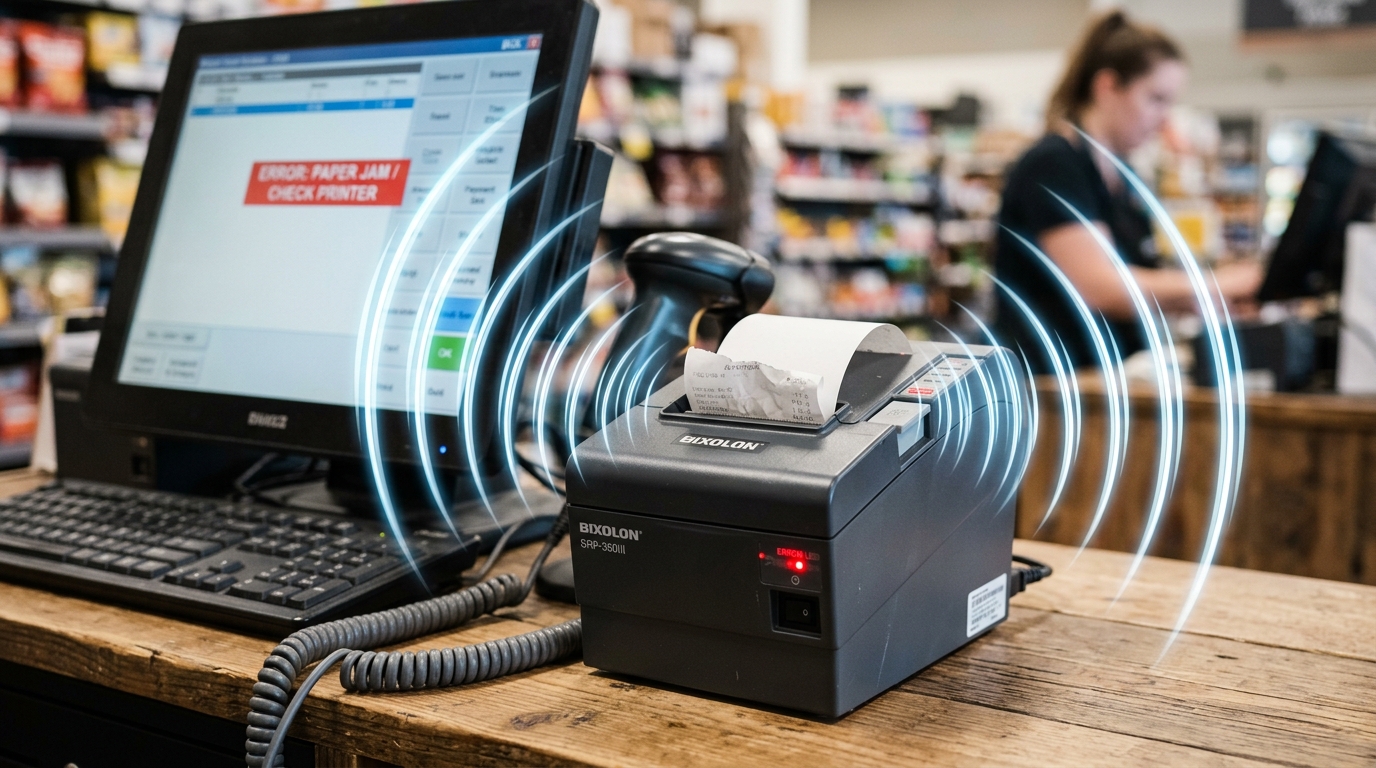
A beeping Bixolon printer isn't just noise for the sake of it — beep patterns are a deliberate alert system, and different sequences mean different things. Some indicate errors, some indicate normal state changes, and some are actually confirmation sounds designed to reassure you that a menu selection registered correctly.
Here's how to decode what your printer is actually telling you.
Start With the Pattern
Before doing anything else, listen carefully to what the beeping is actually doing:
- A single short beep — usually a button-press confirmation or successful action
- Two or three short beeps in sequence — often a menu-selection or mode-change confirmation
- A continuous or repeating beep — an error condition needing attention
- Beeping only during specific actions (cutting, cover-close, boot) — normal operational feedback
- Beeps combined with LED patterns — check the LED first; the beep is usually announcing what the light is showing
If the printer is beeping only when you press buttons or complete actions, that's normal operation. If it's beeping without you doing anything, or beeping continuously, keep reading.
Common Beep Patterns and What They Mean
Single Beep on Button Press
Confirmation that the button was recognized. Nothing wrong.
Beeps During Factory Reset or Menu Entry
Many Bixolon models beep 3–5 times when entering configuration mode or completing a factory reset. On the SRP-Q300, for example, holding the Feed button for 5 seconds triggers 5 audible beeps to confirm you've entered interface setting mode — this is intentional confirmation, not an error.
Repeated Beeping With Error Light On
This is the pattern that actually needs attention. The printer is flagging one of the standard error conditions:
- Paper out
- Cover open
- Print head overheating
- Auto-cutter jam
- Media calibration failure (label printers)
- Unrecognized media gap or black mark (label printers)
Look at the LED at the same time — the light indicates which error, while the beep is just calling your attention to it. Address the underlying error (reload paper, close the cover, clear the jam) and the beeping should stop automatically.
Beeping While Charging (Mobile Printers)
On SPP-series mobile printers, occasional beeps during charging or when connecting the charger are normal status confirmations. Continuous beeping while on the charger, however, can indicate:
Disconnect the charger immediately if the beeping is continuous. The manual is emphatic that using the wrong charger risks overheating or damage — this is one alert not to ignore.
Boot-Up Beep Sequence
Some models perform a short boot beep pattern when powering on to indicate they're initializing. This is normal. If your printer beeps once or twice at startup and then goes silent, that's just it saying "I'm ready."
Beeping After a Long-Press Operation
Certain configuration operations — entering VMSM (Virtual Memory Switch Manager) mode, running specific self-tests, initiating a network reset — trigger confirmation beeps when the long-press operation is recognized. If you were holding a button and the printer suddenly beeps, that's usually the printer confirming your input, not complaining about it.
Bug or Feature? Decoding Ambiguous Beeps
If you can't tell whether the beeping is an alert or a confirmation, ask yourself these questions:
- Are you or someone else actively pressing buttons or navigating a menu? If yes, treat it as confirmation feedback.
- Is a light also on or blinking? Check the light meaning first — the beep is announcing what the light says.
- Did the beeping start out of nowhere with no user action? That's the error case — check for paper out, open cover, overheating.
- Does the printer otherwise work normally? If yes, the beeping might be a configuration option you can disable.
Turning Off Confirmation Beeps
If the confirmation beeps are annoying (particularly in quiet environments like healthcare, libraries, or overnight operations) some Bixolon models allow beeper control through the Virtual Memory Switch settings. Use the VMSM utility or on-printer setting menu to disable buzzer confirmations without disabling error alerts — the exact procedure varies by model.
Beeping After a Firmware Update
If beeping started after a recent firmware update, it may indicate:
- A configuration was reset to a default that includes audible alerts
- The update introduced a new alert behavior your previous firmware didn't have
- The firmware update itself didn't complete cleanly
Try a full power cycle first. If the beeping continues, check the printer's beeper settings — they may need to be re-disabled after the update.
When Beeping Points to a Real Problem
Escalate to Bixolon support if:
- The printer beeps continuously with no visible error condition, and doesn't respond to input
- Beeping is accompanied by unusual smells, heat, or smoke — power off immediately in this case
- Beeping persists after all identifiable error conditions have been resolved and the printer power cycled
- Beeping combined with the printer refusing to boot or complete self-test
Model-Specific Notes
- SRP receipt printers: most beeps are tied to standard error LED conditions — solve the LED cause and the beeping stops.
- Q-series printers (SRP-Q300): the 5-beep sequence during interface setting mode is intentional — not an alarm.
- XD/XL label printers: beeps often accompany calibration procedures and mode changes; check whether you or automated software triggered a calibration cycle.
- SPP mobile printers: charging-related beeps are normal in short bursts, concerning if continuous. Battery and charger safety is the priority.
Frequently Asked Questions
Why does my Bixolon printer beep every time I press a button? That's button-press confirmation — it's designed to give feedback that the input registered. On most models you can disable this in the settings menu if it's distracting.
Is continuous beeping always a serious problem? Not always, but it's always worth checking. Continuous beeping with a lit error LED points to a specific fault (paper, cover, cutter). Continuous beeping with no LED indicator is more unusual and worth investigating.
Can I stop the beeping without fixing what's causing it? Only for confirmation beeps. Error beeps are tied to the underlying error state — you have to actually fix the paper jam, closed cover, or other condition to make it stop.
Why does my mobile printer beep when I plug in the charger? That's a normal charge-connection confirmation on most SPP models. Continuous beeping while charging, however, is a warning sign — disconnect and check the charger.
Quick Checklist
- Identified whether beeping is single, pattern, or continuous
- Checked what LEDs are showing simultaneously — usually tells you why
- Ruled out normal confirmation feedback (button presses, menu selections)
- Checked for paper-out, cover-open, or overheating if error LED is on
- Confirmed correct charger if beeping started while charging a mobile model
- Considered whether recent firmware update or setting change might have re-enabled the buzzer
- Powered off immediately if beeping is accompanied by smell, heat, or smoke
Bixolon printer beeps are usually deliberate communication, not random noise. Once you know how to distinguish confirmation feedback from error alerts, decoding what your printer is trying to tell you becomes a matter of matching the pattern to the LED — and fixing whatever underlying condition triggered it in the first place.
