


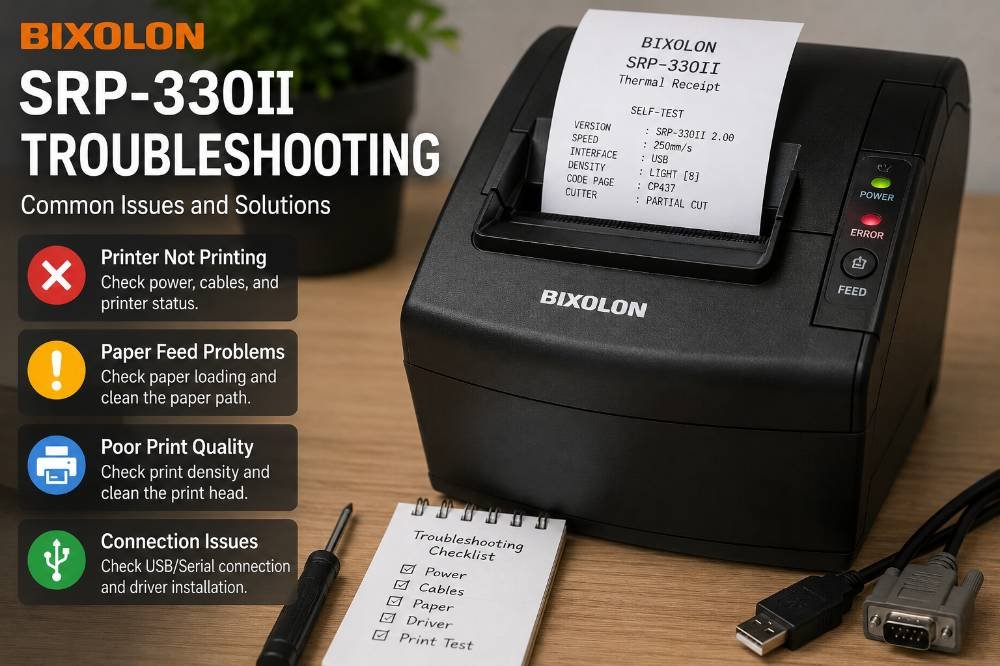
The Quick Answer
Discontinued but widely used, the Bixolon SRP-330II receipt printer can experience connectivity or cutter issues. Here is how to troubleshoot them.
The Bixolon SRP-330II (sold alongside its dual-color sibling, the SRP-332II) is one of the most widely deployed thermal receipt printers in small and mid-sized retail and restaurant POS setups. It's a flexible printer — it supports USB, Ethernet, Serial, Dual Serial, and Parallel interfaces depending on configuration — which also means there are a few more places things can go wrong compared to a simpler single-interface model.

One important note before diving in: Bixolon discontinued the SRP-330II in July 2024, with the SRP-330III as its official replacement. Support and service continue through July 2029, so existing units are still fully serviceable — this guide covers exactly what to check.
Running a Self Test on the SRP-330II
This is the fastest way to confirm the printer's hardware is working before troubleshooting anything else:
- Confirm paper is loaded correctly.
- Turn the printer on while holding down the Feed button.
- The printer will begin self-diagnostics and print a page showing its current ROM version and DIP switch settings.
The SRP-330II actually offers two distinct modes from this same self-test screen, controlled by how long you hold the Feed button afterward:
- Press Feed for less than 1 second → triggers a Continuous Self-Test, which repeatedly prints test pages — useful for checking print consistency over multiple pages rather than just one.
- Hold Feed for 1 second or longer → enters VMSM (Virtual Memory Switch Mode) selection, which lets you change internal settings like print density directly from the printer, without needing the Unified POS Utility software installed on a computer.
If you're troubleshooting faded or inconsistent print quality, the VMSM print density adjustment is worth trying before assuming the print head itself is failing.
DIP Switch Settings (Serial and Dual Serial Interfaces)
If your SRP-330II is connected via Serial or Dual Serial rather than USB or Ethernet, a mismatched DIP switch setting is a common — and easy to overlook — cause of communication failures. The printer uses DIP switches to control:
- Auto cutter control (enable/disable)
- Flow control (XON/XOFF vs. DTR/DSR)
- Data length (7-bit vs. 8-bit)
- Parity checking and selection
These switches must be set while the printer is powered off — changes made while it's running won't be recognized. If your printer was working over Serial and suddenly stopped communicating after a settings change (yours or someone else's), mismatched DIP switches between the printer and your POS software's expected configuration is the first thing to check.
Connection-Specific Issues
USB
The SRP-330II's USB connection is straightforward, but the manual specifically warns against connecting or disconnecting the USB cable while the printer is powered on — doing so can cause data loss mid-transfer, which can look like a connection failure or corrupted print job afterward. Always power off before changing the USB connection.
Ethernet / Network
The SRP-330II includes a dedicated function key for network diagnostics:
- Power on the printer and wait at least 10 seconds for the LAN interface to fully boot.
- Press the function key.
- The printer will print its current IP and MAC address information — useful for confirming exactly what address it's using before troubleshooting a "can't find printer on network" issue.
If the printer's network settings have become misconfigured, the SRP-330II also supports a network-specific factory reset (separate from a full printer reset) that restores Ethernet settings to default — covered in Bixolon's dedicated Network Connection Manual for this model.
Serial / Dual Serial / Parallel
These older interface types are still common in established POS installations. Beyond the DIP switch settings above, confirm the correct cable type is used for each (Serial uses a DB9 connector; Parallel follows the IEEE1284 standard), since using a cable built for a different interface type — even if it physically fits — will not transmit data correctly.
Paper Feed and Auto-Cutter Issues
The SRP-330II includes an auto-cutter rated for roughly 1.5 million cuts, alongside an anti-jam paper guide designed to reduce feed issues. Even so, a few specific things to check:
- Paper not feeding correctly — clean the paper feed rollers with a soft, lint-free cloth; built-up dust or paper residue is a common cause that's easy to miss visually.
- Paper roll stuck to its cardboard tube — the printer may fail to correctly detect paper-empty status if the roll is stuck to the core, so confirm the roll spins freely before troubleshooting further.
- Auto-cutter not cutting at all — check the DIP switch setting for auto-cutter control, since it can be set to disabled.
- Inconsistent cuts or visible jamming at the cutter — power off before clearing any debris near the blade, and avoid manually forcing the cutter mechanism.
Cash Drawer (Drawer Kick-Out) Issues
The SRP-330II includes a drawer kick-out port for connecting a cash drawer. If the drawer isn't opening on a print/cut command:
- Confirm the cash drawer meets the printer's required internal coil resistance specification — using an incompatible drawer can cause it to simply not trigger, or in some cases damage the port.
- Never let a conductive object touch the drawer kick-out port directly, as this can damage the printer.
Driver and OS Compatibility
The SRP-330II's Windows driver supports a wide range of versions, from legacy Windows XP installations through modern Windows 11 and current Windows Server releases.
If you've recently upgraded an operating system and the printer stopped being recognized, confirm you're running the driver version matched to your new OS — older driver packages built for XP-era systems won't function correctly on modern Windows without an update.
Using the Easy Tracking™ Feature
The SRP-330II includes a built-in Easy Tracking™ feature — a printed QR code that links directly to Bixolon's technical support resources for the model. If you're stuck on an issue not covered here, printing this code (typically accessible through the self-test or a dedicated print function) is a fast way to get to model-specific support content without searching manually.
What "Discontinued" Means for Existing Owners
Since the SRP-330II was officially discontinued in July 2024, it's worth knowing what that does and doesn't mean for units already in service:
- Service and support continue through July 2029 — replacement parts and repairs remain available well beyond the discontinuation date.
- New unit purchases will increasingly be the SRP-330III instead, which is the direct successor model.
- Drivers and software will likely continue to receive updates through the support window, but it's worth budgeting for an eventual transition to the SRP-330III for any business planning hardware purchases multiple years out.
Frequently Asked Questions
Can I still buy a new Bixolon SRP-330II? New units are increasingly difficult to find since its July 2024 discontinuation — the SRP-330III is the direct replacement and is the model Bixolon is actively selling going forward.
Why did my SRP-330II stop communicating after a DIP switch was changed? DIP switch changes only take effect when set while the printer is powered off — if a switch was changed while the printer was running, power it off and back on after setting it correctly.
How do I find my SRP-330II's IP address without a computer? Power on the printer, wait at least 10 seconds, then press the function key — it will print the current IP and MAC address directly.
Is the auto-cutter on the SRP-330II replaceable if it wears out? The auto-cutter is rated for approximately 1.5 million cuts, which covers years of typical use — if it fails before that, it's worth a support inquiry given the printer's continued service window through 2029.
Quick Checklist
- Self-test run to confirm hardware status
- DIP switches checked (if using Serial/Dual Serial) and set while powered off
- Correct cable type confirmed for your interface
- Paper feed rollers cleaned if feed issues occur
- Auto-cutter DIP switch confirmed enabled (if cuts aren't happening)
- Network IP/MAC printed via function key (if using Ethernet)
- Driver version matched to current OS
The SRP-330II's flexibility — multiple interface options, configurable DIP switches, built-in diagnostics — is also what makes it slightly more involved to troubleshoot than a simpler single-interface printer. Working through the model-specific steps above, rather than generic printer troubleshooting alone, will get you to the actual cause faster.
