


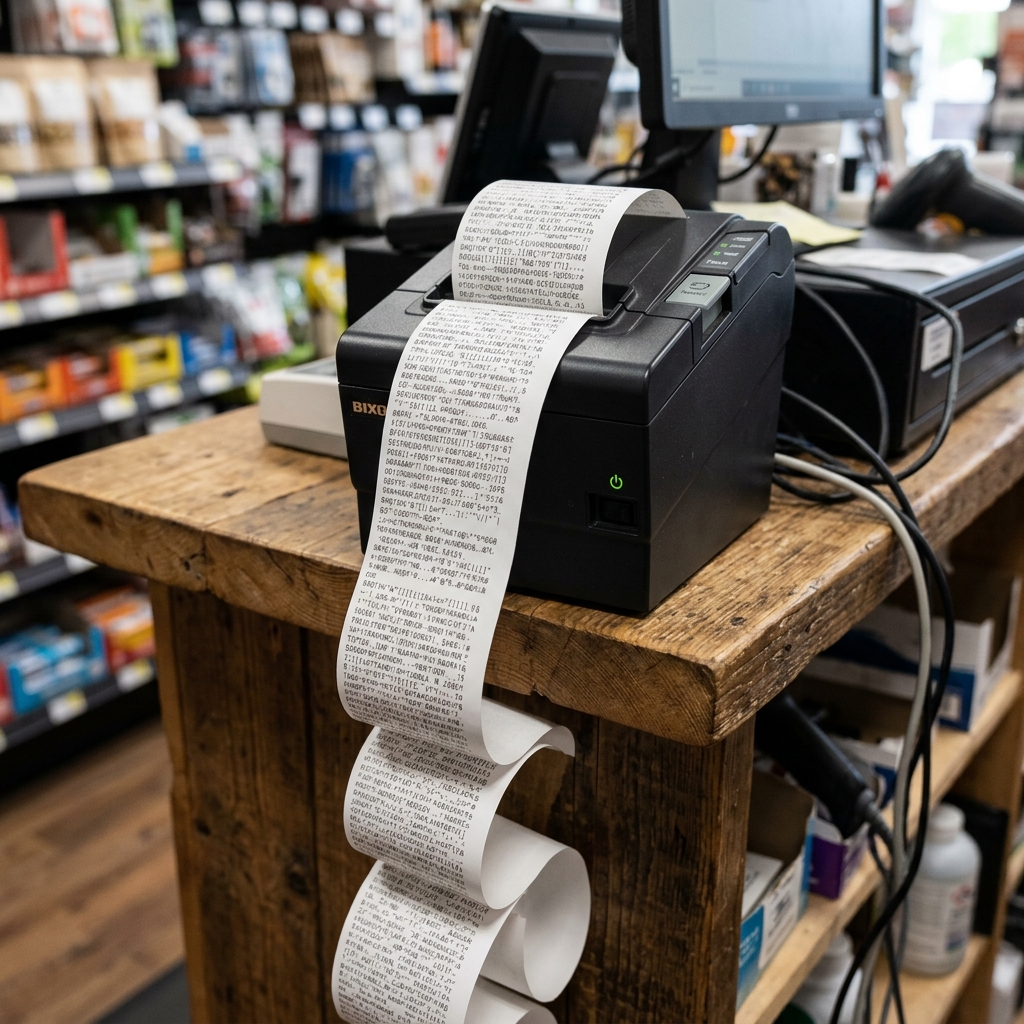
The Quick Answer
If your Bixolon printer is printing garbage text, nonsense characters, or weird symbols, it is almost certainly a driver issue. Learn how to fix it with these troubleshooting steps.
If your Bixolon printer is churning out random characters, symbols, or..... Nonsense text instead of your actual print jobs, here's the good news: this is almost never ahardware failure.
Garbled or "garbage" output on Bixolon printers is one of the..... Most predictable software-side problems in the entire troubleshooting playbook — the printer is receiving data, but the wrong data, or the right data in the wrong language.
Here's what's actually happening and how to fix it.
Why This Happens (The Short Explanation)
Bixolon thermal printers speak specific command languages — ESC/POS, SLCS, or SBPL depending on the model. When your computer sends data using the wrong language for that....
Printer, the printer doesn't know it's receiving garbage — it just tries to render whatever bytes come in. Text.
The result: streams of random characters, weird symbols, or half-recognizable output surrounded by junk.
This happens in a handful of specific situations:
- Wrong driver installedetup-installation/dymo-labelwriter-4xl-5xl-setup-driver-guide" title="DYMO LabelWriter 4XL & 5XL Driver Download & Setup">driver installed (most common)
- Generic Windows driver beingare-firmware/dymo-550-rfid-drm-third-party-labels-compatibility" title="DYMO 550 RFID DRM & Third-Party Labels Compatibility">Generic Windows driver being used instead of the correct Bixolon driver
- Driver installed on the ivity-issues/dascom-pos-printer-offline-esc-pos-driver" title="Fix Dascom POS Printer Offline (Driver & Network Setup)">Driver installed on the wrong communication port
- Character encoding mismatch (particularly with non-Latin languages)
- Damaged interface cable causing data corruption in transit
- Wrong emulation mode selected on the printer
Step 1: Run a Self-Test First
Before touching any software, hold the Feed button while powering on the printer to trigger a self-test. This prints directly from the printer's internal memory using its own firmware (internal software) — no computer, driver, or cable involved.
- Self-test prints cleanly with readable text → your printer hardware is fine. The garbled output is 100% a driver/software issue. Skip to Step 2.
- Self-test itself prints garbled → this is unusual and points to a genuine hardware fault or corrupted firmware (internal software). Skip to the last section about contacting support.
Step 2: Reinstall the Correct Bixolon Driver
The most common cause of garbled printing is the wrong driver. Even if you ha. D a working driver installed months ago,.... A Windows update, an OS upgrade, or an accidental driver replacement can silently substitute ageneric driver that no longer speaks your printer's command language correctly.
- Uninstall the current printer="/kodak/setup-installation/kodak-printer-driver-unavailable-fix" title="Fix Kodak Printer Driver Unavailable on Windows 10 & 11">printer driver completely — both from Devices and Printers and from Programs & Features. Leaving remnants in either place causes conflicts.
- Restart your computer.
- Download the driver matched ation/dymo-labelwriter-4xl-5xl-setup-driver-guide" title="DYMO LabelWriter 4XL & 5XL Driver Download & Setup">Download the driver matched to your exact printer model and exact OS version from Bixolon's official support site. Precision ma. Tters here more than with many other brands —.. A driver for a slightly different model. Windows build can install successfully. Silently sending garbled data.
- Install as Administrator.
- Send a test print before connecting any POS software.
If the test print is clean after this step, you're done. If it's still garbled, continue below.
Step 3: Confirm It's Not a Generic Windows Driver
Sometimes Windows automatically installs a generic printer driver during device recognition, overriding what you thought was the Bixolon driver. To check:
- Open Devices and Printers (Control Panel) or Settings → Bluetooth & devices → Printers & scanners.
- Right-click your printer and select Printer properties.
- On the Advanced tab, look at which driver is listed.
- If it says anything like "Text Only," "Generic / Text Only," or a Windows built-in name rather than a specific Bixolon model driver, that's your problem.
- Change the driver to the correct Bixolon one; if it doesn't appear in the list, install it via Add Printer → Have Disk pointed at the Bixolon driver files.
Step 4: Check the Communication Port (Especially Important)
Wrong-port assignments are a hidden cause of garbled output that most guides miss. For USB printers, Windows may install the driver targeting the wrong USB port entry, or for Bluetooth serial printers, on the wrong virtual COM port.
- USB printers:in the printer's Ports tab, confirm it's targeting the correct USB..... Entry (usually the highest-numbered USB00X entry for the physical port your printer uses).
- Bluetooth printers: for models like the SPP-R310, the driver must be installed on the specific COM port your Bluetooth pairing created. Windows typically creates two COM ports for a paired Bluetooth serial..... Printer, and one of them is inbound-only — the outbound port (usually the higher number) is the one the driver needs to target.
- Serial printers (older SRP models): confirm the baud rate, parity, data bits, and flow control in the driver match.... The DIP switch. Memory switch settings on the printer itself.
Step 5: Check the Emulation Mode on the Printer
This one only applies to certain models, but it's a real fix for a specific class of garbled-output problems. Some Bixolon printers support multiple emulation modes — for example, the SRP-275III can switch between BXL/POS (standard receipt) and BXL/POS-KP (kitchen printer) emulation.
If your printer is set to the wrong emulation for what your POS software expects to send, you'll get exactly this: garbled output that doesn't look like an error, just meaningless printed characters. Consult your specific model's manual for how to check.
Change emulation.... Mode — it usually involves entering the setting menu through a self-test button sequence.
Step 6: Try a Different Cable
Cables can cause garbled output when they're mostly working but corrupting individual bytes in transit — the printer receives most of the data correctly, but enough is scrambled to produce garbage. This is more common with damaged USB cables than serial ones, but it happens to both.
Swap the cable — ideally with a short, high-quality one — before assuming your driver work is at fault. If the output cleans up with a different cable, you've found the cause.
Step 7: Check Character Encoding (Non-Latin Languages)
If your Bixolon printer is printing English text fine but garbles non-Latin scripts (Arabic, Hebrew, Chinese, Thai, etc.), the issue is character encoding:
- Confirm your POS software is sending text in the correct code page or encoding for the printer's configured code page.
- Bixolon printers support multiplecode pages (see the code page manual for your model) —.... Set the printer's code page to match what your software sends, using the Unified Utility software. The printer's setting menu.
- For Unicode text, the printer may need a downloaded font file..... Specifically for that script — Bixolon's utility software includes fontdownload functions.
Step 8: Data Dump Mode (Advanced Diagnostic)
If the previous steps haven't resolved it, most Bixolon printers include a Data Dump Mode that shows exactly what data is arriving at the printer, printed in hexadecimal alongside the ASCII equivalent. This is mainly a developer tool, but it definitively answers "is the printer receiving the right data or not?"
To enable Data Dump Mode:
- Consult your specific model's manual for the exact button sequence —.... Commonly involves powering on. Holding Feed, then selecting Data Dump from the menu.
- Send a normal print job from your computer.
- Instead of your intended print, the printer will print hex codes matched to ASCII characters.
- Compare what should have been sent against what actually arrived — significant differences point to a cable, driver, or software fault.
This is more diagnostic than fix, but for stubborn cases it tells you where in the chain the corruption is happening.
Step 9: For Kitchen Printers Specifically
If the printer is being used. A kitchen ticket printer (common... For SRP-275III. Similar models), and it's suddenly garbling tickets after previously working:
- Confirm your POS software's kitchen printer settings haven't been reset to a different printer language or code page after an update.
- Check whether a recent POS update changed the ticket format template — some updates require re-selecting the printer type after upgrade.
When It's Genuinely a Hardware Issue
The rare cases where garbled output actually indicates a hardware problem:
- The self-test itself prints garbled (extremely rare, points to firmware (internal software) corruption)
- The output is garbled. The printer is behaving strangely in other.... Ways — random paper feeds, error lights coming on unpredictably, sounds it didn't make before
- Nothing above has resolved it after methodical work through all applicable steps
In these cases, contact Bixolon support. firmware (internal software)corruption can sometimes be recovered through a firmware (internal software) re-flash,.... But this generally requires either the utility software with specific instructions. Service intervention.
Frequently Asked Questions
Why does my Bixolon printer suddenly print garbled text when it was working yesterday? An automatic OS or driver update overnight is the most common cause. Reinstall the correct driver for your specific model and current OS version to fix it.
Can a bad USB cable really cause garbled printing? Yes — damaged or partially failing cables can corrupt data in transit while still appearing to work. Swap the cable as a diagnostic step; a clean print with a different cable confirms it.
Why does my printer only garble certain languages but print English fine? Character encoding mismatch. Your POS software is sending text in an encoding the printer's current code page doesn't understand. Match the code pages, or download the appropriate font file.
Should I try to update firmware (internal software) to fix garbled output?Only if you've exhausted driver. Cable fixes — firmware (internal software).... Updates should be a last resort for this symptom, since a bad update can cause worse problems than the one you're trying to fix.
Quick Checklist
- [ ] Self-test run — confirmed hardware itself works
- [ ] Correct Bixolon driver (not generic) installed for exact model and OS
- [ ] Previous driver fully uninstalled from both Devices and Programs list
- [ ] Correct communication port confirmed in printer properties
- [ ] Cable swapped as a diagnostic check
- [ ] Emulation mode confirmed correct for your model (if applicable)
- [ ] Character encoding / code page matched to POS software output
- [ ] Data Dump Mode used to verify what data actually arrives (if all else fails)
- [ ] firmware (internal software) update only considered as last resort
Garbled printing feels like a hardware disaster but almost always turns out to be a communication or driver mismatch. Work through the steps in order — self-test first, then driver,....
Then port, then cable — and you'll typically resolve it within one. Two attempts.
The rare cases that require service are usually obvious because the self-test itself fails.
