


The Quick Answer
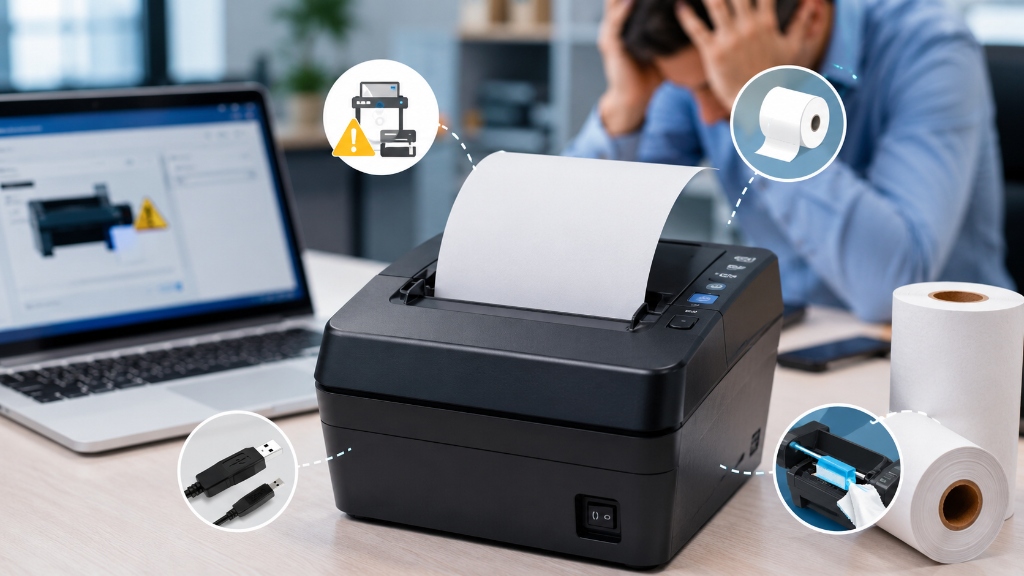
Bixolon printer not printing? Work through these fixes in order — from paper. Cables to... Drivers. POS settings — to get it working again in minutes.
A Bixolon printer that won't printis almost never actually broken — it's usually one small thing standing between a print job. The paper coming out.
In the vast majority of cases, the cause falls into one..... Of three buckets: something physical (paper, cover, cable), something software-related (driver, queue, POS settings), or, far less often, an actual hardware fault.
The fixes below are ordered by how often they're actually the cause, starting with the fastest checks first. Work through them in order rather than jumping around — most....
People who jump straight to reinstalling drivers. Calling support end up solving a paper-loading issue they could have caught in 20 seconds.
Most cases are resolved within five minutes using nothing more than the printer itself.
Why This Happens: A Quick Mental Model
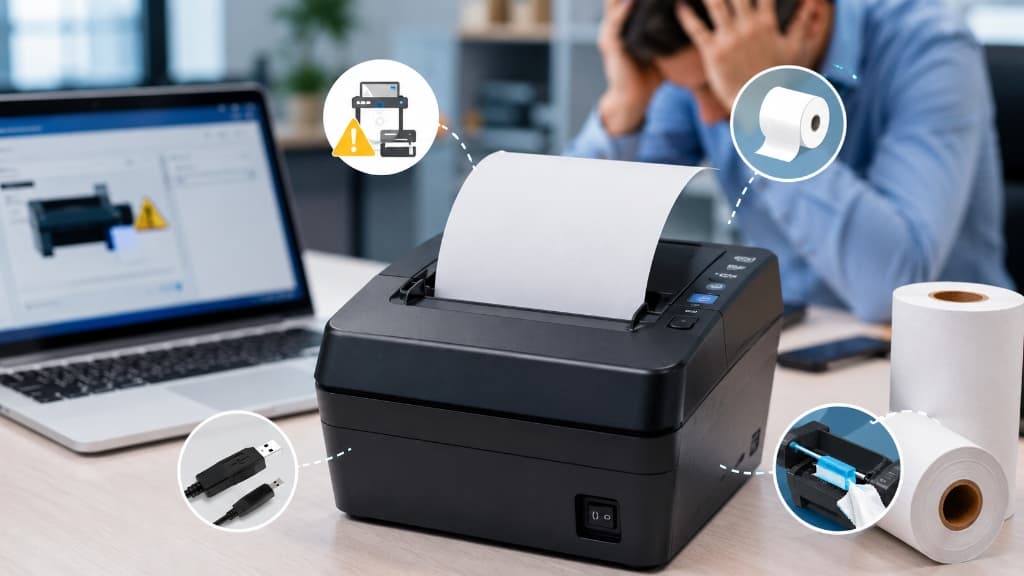
Before working through the steps, it helps to know what "not printing" actually covers, because it's not one single problem:
- Nothing happens at all when you send a job — usually a connection, driver, or software issue.
- The printer feeds paper but prints nothing visible — usually a paper-loading issue (wrong side facing out) or a worn print head.
- The printer attempts to print but jams or stops mid-job — usually a paper jam, cover issue, or cutter fault.
- It worked yesterday and now doesn't, with no changes made — almost always a driver conflict from an automatic OS update, or a network IP address that changed.
Keep your specific version of the problem in mind. You go.... — it'll help you skip straight to the right section if you want to move faster than the full sequence below.
1. Check the Paper First
This sounds obvious, but it's the single most common cause of... A "dead" printer, especially in busy retail. Restaurant environments where paper gets swapped quickly. Not always correctly. Open the cover and confirm all of the following:
- There's actually a roll loaded — not just an empty cardboard core sitting in the tray, which is easy to miss at a glance.
- The paper isn't jammed or torn at the feed point, where small torn fragments can block the sensor without being obviously visible.
- It's genuine thermal paper, loaded thermal-side facing the print head. This is the single most common paper mistake — load it... Backward, or use non-thermal paper by accident, and you'll get a printer that feeds paper perfectly normally. Printing absolutely nothing, which looks exactly like a broken printer. Isn't one.
- The roll isn't too tightly wound or warped, which can create just enough drag to trigger a false jam reading on some models.
Close the cover firmly until it clicks audibly. This matters more than people expect: many Bixolonmodels use a cover-latch safety sensor, and if it's not fully..... Seated, the printer will refuse to print at all — even if every other condition is perfect — without necessarily showing an obvious error.
How to tell if this was the cause: if the error light turns off and the printer accepts a test print immediately after reloading and closing the cover, this was it. No further troubleshooting needed.
2. Look at the Error Light
Before touching your computer, check the printer's LED— it usually tells you exactly. Category of problem you're dealing with before you've spent any real time on it:
- Blinking red light → usually means an open cover or paper-out condition you may have just fixed in Step 1. Power cycle and check again.
- Solid light, no blinking, printer otherwise idle→ the. . Printer believes it's ready. Waiting, which tells you. The problem is upstream of the printer itself — your computer. POS software isn't successfully sending the print job. Skip ahead to Step 4.
- Fast, rapid blinking (roughly every 200 milliseconds) → typically indicates the print head has overheated, usually after a burst of high-volume printing. This resolves on its own — see Step 8.
- No lights at all, completely dark → this is a power issue, not strictly a printing issue. Check the power cable, the wall outlet, and the power brick..... Itself (these are a common failure point on printers left on 12+ hours a day) before going any further.
3. Power Cycle the Printer
Turn it off, wait a full 10 seconds, and turn it back on. This clears minor internal errors and stuck states that don't always show up as an obvious blinking lightbut still quietly block printing — things like a half-processed job....
Stuck in the printer's internal buffer, or a sensor that briefly misfired. Needs a clean restart to reset.
It's a 10-second step that resolves more cases than most people..... Expect, and it costs nothing to try even if you're fairly sure it won't work.
4. Confirm the Print Job Is Actually Reaching the Printer
If the printer itself looks completely fine — lights no. Rmal,.... No errors — but nothing happens when you send a print job, the issue is almost always on the computer orPOS side rather than the printer:
On Windows:
- Open Settings → Bluetooth & devices → Printers & scanners (or Devices and Printers on older versions).
- Right-click your Bixolon printeron/error-codes-alerts/bixolon-printer-blinking-light-meaning" title="Bixolon Printer Blinking Light Meaning: Full LED Code Chart">Bixolon printer and select See what's printing.
- If there's a stuck or stalled job in the queue, cancel it. Clear the queue completely — a single stuck.... Job will silently block every job sent after it, which is one of the most common reasons a printer that "was working fine" suddenly stops.
- If the printer shows "Offline" here even though it's powered on and connected, right-click and deselect "Use Printer Offline" if that option is checked.
On macOS:
- Open System Settings → Printers & Scanners.
- Click your Bixolon printer n/connectivity-issues/bixolon-printer-showing-offline" title="Bixolon Printer Showing Offline? Here's the Fix">Bixolon printer and check whether it shows as paused — if so, resume it.
- Clear any stuck jobs from the queue the same way as above.
Inside your POS software (Square, Toast, Shopify POS, Clover, etc.):
- Open the printer. Hardware settings specifically inside the app — many.... POS platforms maintain their own separate printer settings that's independent of the operating system's printer list, and it's easy to have the wrong device selected after anapp update.
- Re-select the correct Bixolon printer if it's listed as disconnected or unselected.
- Fully close and restart the POS application itself, not just the printer. A surprising number of "the printer just stopped working" support tickets clear up after nothing more than restarting the software that's sending the print job.
5. Run a Self-Test to Isolate the Problem
This is the fastest way to determine whether the printer itself..... Works at all, completely independent of any computer, cable, orsoftware.
Hold the feed button. Powering the printer on (the exact combination....
Varies slightly by model — check your specific model's manual if it doesn't trigger immediately, since some require holding it for a few seconds after power-on rather than before).
- Self-test prints fine → your printer hardware is confirmed working. The issue is 100% on the connection or software side from here — focus your attention on Steps 4, 6, or 7 rather than anything physical.
- Self-test fails, prints blank, or comes out faded/streaky→ you likely have a paper-loading issue (go back. Recheck Step... 1 carefully) or a deeper hardware fault such. A wornprint head.
- Self-test won't trigger at all → this usually means an error condition (open cover, paper jam) is actively blocking it — resolve that first, then retry.
6. Reinstall or Update the Driver
Outdated, corrupted, or mismatched drivers are one of the most common reasons a printer "stops printing" with no warning, especially right after an operating system update pushes through automatically overnight:
- Uninstall the existing Bixolondriver completely through your OS's installed-programs list — don't just delete..... The printer from the printers list, which often leaves driver files behind that cause conflicts.
- Restart your computer fully before reinstalling anything.
- Download the driver version ation/dymo-labelwriter-4xl-5xl-setup-driver-guide" title="DYMO LabelWriter 4XL & 5XL Driver Download & Setup">Download the driver version matched to your exact printer model and exact OS version from Bixolon's official support site. This precision matters more with Bixolon hardware than with many consumer... Printer brands — a driver built for a slightly different model. OS build can install without errors. Still fail silently when sending jobs.
- Install it fresh, then immediately send a test print before reconnecting any POS software, so you know the base driver layer works before adding complexity back on top.
Resist the temptation to use a generic or "universal" ESC/POS printer driveras a shortcut — it may appear to install correctly. Still causing inconsistent or failed print jobs down the line.
7. Check the Connection Itself
If the driveris current. The self-test passes but jobs still aren't reaching the printer, the issue is specific to how it's connected:
- USB: try a different cable entirely (not just a different port) — cables fail more often than the ports themselves. Avoid USB hubs, especially unpowered ones, which can cause intermittent dropouts under load.
- Network: print the printer's network settings page (button combination varies by model) to check its current IP address. If it's changed. Your POS software was configured, your system is.... Silently sending every job to an address that no longer exists. Assigning the printer a static IP through its settings utility prevents this from recurring.
- Bluetooth:unpair completely from your device's Blueto. Oth settings rather than trying... To reconnect to an existing pairing that's gone stale, then put the printer back into pairing mode. Reconnect from scratch.
8. Rule Out an Overheated Print Head
If the printer was running heavy print volume right before it stopped — a busy lunch rush, a batch of shipping labels, a long restaurant ticket run — it may have simply paused to protect itself, not malfunctioned. This is a built-in safety behavior, not a fault.
Let it sit powered on and idle for 5–10 minutes without sending additional jobs, then try again.
Common Error Messages Tied to This Symptom
If your POS software or operating system is showing a specific message alongside "not printing," here's what it usually maps back to:
| Message Seen | Most Likely Cause |
|---|---|
| "Printer Offline" | Stuck print queue, or printer genuinely disconnected — check Step 4 and 7 |
| "Printer Not Found" | Driver not installed, or wrong connection type configured |
| "Print Spooler Error" | Windows print spooler service needs restarting (Services → Print Spooler → Restart) |
| "Device Not Responding" | Cable/connection issue, or printer stuck mid-job — power cycle first |
| No message at all, job just vanishes | Job sent to wrong/old printer in POS settings — recheck Step 4 |
If Nothing Above Works
At this point, you're likely dealing with a genuine hardware fault..... Rather than a settings issue — most commonly a failingprint head, a damaged internal sensor, or a mechanical fault that isn't user-serviceable.
Contact Bixolon support. An authorized repair center, and check your warranty....
Status before paying out of pocket for a repair, since many Bixolon POS printers carry multi-year coverage that's easy to forget about.
Frequently Asked Questions
Why did my Bixolon printer suddenly stop printing with no changes made?
This is almost always either an automatic OS/driver update that happened in the background, or a network IP address change after a router restart — both are common, both are software-side, and neither indicates a hardware problem.
My printer feeds paper but nothing prints on it — is that the same issue?
No — this is almost always paper loaded with the thermal-sensitive side facing the wrong way, or non-thermal paper used by mistake, rather than a connection or driver problem. Recheck Step 1 specifically.
Can a stuck print job really block everything after it?
Yes. Many printers, including Bixolonmodels, process jobs in order, so one stalled job at the..... Front of the queue will hold up every job sent afterward until it's manually cleared.
Should I reinstall the driver every time this happens?
No — only do this if a self-test passes (confirming hardware is fine) but jobs still aren't being received. Reinstalling a driver unnecessarily can sometimes introduce a new mismatch rather than fix anything.
Quick Checklist
- Paper loaded correctly, thermal-side facing the head
- Cover fully closed and latched
- Power cycled the printer
- Print queue cleared (both OS-level and inside POS software)
- Correct printer selected inside POS software, app restarted
- Self-test run and passed
- Driver fully reinstalled/updated for exact model and OS
- Cable/connection checked or swapped
- Print head given time to cool if recently under heavy use
In most cases, a Bixolon printer that "isn't printing" is a paper, cover, queue, or driver issue rather than a hardware failure. Work through the checklist above in order, and you'll know within....
A few minutes whether you're dealing with a quick fix. Something that genuinely needs a closer look from a technician.
