


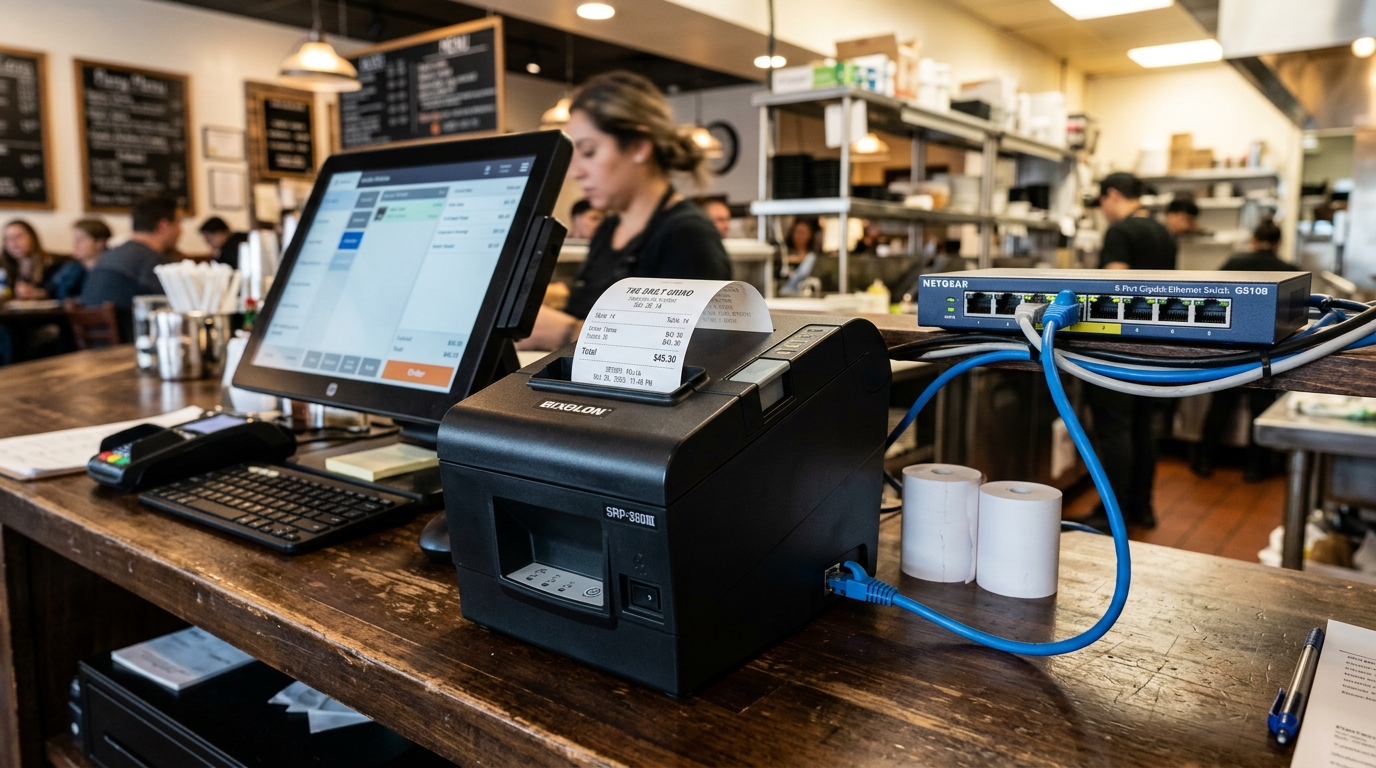
The Quick Answer
If your Ethernet or Wi-Fi connected Bixolon printer shows offline, you may be dealing with a changed IP address or a stuck print spooler. Learn how to diagnose and fix it.
If your Bixolon printer is Ethernet or Wi-Fi connected and it keeps showing offline, the fix depends on whether you're dealing with a one-time issue (specific event triggered it) or a recurring pattern (happens weekly or after every router restart).
For one-time cases, one of five things has usually happened: router restarted, printer's IP address changed, a cable came loose, a firmware (internal software) update was applied, or your POS software's cache went stale.
For recurring cases, the same handful of underlying settings need to be corrected — otherwise you'll be fixing it again next week.
Fast Recovery: The 3-Minute Fix Sequence
If you just need the printer back online right now and can address the recurring pattern later, work through this order:
- Verify the printer is actually powered on and its network LED is showing connected state — solid green on most models. If it's off or blinking, the printer isn't on the network at all. skip to the network connection section below.
- Print the network settings page (varies by model — usually a function key or button-hold sequence). Note the current IP address.
- From a computer on the same network, ping that IP address. If it responds, the printer is on the network — the problem is between it and your POS software or Windows. If it doesn't respond, the printer isn't actually reachable.
- If ping works but POS shows offline — restart the print spooler service (Windows) or restart the POS application. This clears cached status.
- If ping doesn't work — the printer's IP has likely changed since your setup was configured. Update your POS software with the current IP from the settings printout.
That single sequence resolves the vast majority of "offline" cases within a few minutes.
Why This Keeps Happening: The IP Address Problem
By far the most common cause of a Bixolon network printer going offline is that its IP address changed without anyone noticing.
Here's what happens: your router hands out IP addresses using DHCP. When the router reboots (power outage, firmware (internal software) update, someone unplugging it, scheduled overnight restart), it can reassign IPs on next boot. The printer that was at 192.168.1.42 yesterday might be at 192.168.1.87 today.
Your POS software is still pointing at 192.168.1.42 — where nothing exists — so it shows the printer as offline.
The permanent fix: assign a static IP. There are two ways:
- Static IP set on the printer itself. Through the printer's settings utility or menu, assign a fixed IP address in your network's range (e.g., 192.168.1.200). This ensures the printer always uses that specific address, regardless of what the router does.
- DHCP reservation on the router. Configure your router to always assign the same IP to the printer's MAC address. This works transparently — the printer thinks it's using DHCP normally. But always gets the same address.
Method 2 is generally cleaner because all IP management stays in one place (the router). Method 1 is more portable if you might move the printer between networks.
When "Offline" Isn't Actually Offline
A Bixolon network printer showing offline in Windows or your POS software doesn't necessarily mean it's disconnected from the network. There are three distinct "offline" scenarios:
True offline — the printer is not reachable on the network at all. Ping fails, the printer's network LED shows disconnected, or it's actually powered off. Fix the physical connection or IP address.
Reachable but reporting offline — the printer is on the network (ping works) but your computer or POS software has cached an offline status. Restart the print spooler, POS app, or reboot the computer to clear the cache.
Selectively offline — the printer is reachable from some devices but not others. Usually a VLAN or subnet issue where different devices are on different network segments and can't route to each other.
Which one you're in determines the fix. Check ping status first, before assuming any of them.
Ethernet-Specific Issues
Cable partially seated. Ethernet cables can look plugged in but not actually make contact. Unplug at both ends and firmly reinsert. The click should be distinct.
Damaged cable. Cables that have been kinked, crushed, or run over wear out. If a cable used to work but suddenly doesn't, swap it before assuming the printer or port is the problem.
Wrong port on a network switch. Some managed switches disable ports or assign them to VLANs. If your printer is plugged into a specific port that's been reconfigured, it may lose connectivity without warning. Try a different port.
Speed/duplex mismatch. Rare. But on older networks with 10/100 switches, negotiation can fail. Most modern setups don't hit this. But it's worth checking if you're on aging network equipment.
Wi-Fi-Specific Issues
If your Bixolon printer is Wi-Fi connected and going offline, additional causes come into play:
Signal strength. If the printer is at the edge of Wi-Fi range, it can drop connection intermittently. Move it closer to the access point or add a repeater. Check the network settings printout for signal strength if the printer reports it.
Router settings changed. If someone changed the Wi-Fi password, the SSID, or the security type at the router, the printer will drop off the network and won't reconnect until its saved credentials are updated to match.
Band steering. If your router has band steering enabled and dynamically moves clients between 2.4GHz and 5GHz, an older Bixolon that only supports 2.4GHz can get pushed to 5GHz and drop off. Disable band steering for the printer's MAC address, or separate the bands into different SSIDs.
POS Software Cache Issues
Your POS platform likely maintains its own record of the printer's status, separate from the operating system. When the printer's actual status doesn't match what the POS thinks, you get "offline" in the POS app even when everything else says the printer is fine.
Fix:
- Close the POS application /hardware-maintenance/dascom-thermal-printer-not-cutting-paper-cutter-jam" title="Fix Dascom Thermal Receipt Printer Not Cutting Paper">POS application completely (not just minimize).
- Reopen it and re-check printer status.
- If it's still showing offline, remove the printer from the POS printer settings and re-add it with the current IP address.
Some POS platforms (Square, Toast, Shopify POS, Clover) have their own "test print" or "check status" features that will refresh their cached status faster than just waiting.
What About Print Spooler Issues?
On Windows specifically, the print spooler service caches print jobs and printer status. When it gets stuck — especially after a large job or an unexpected interruption — it can hold onto stale status information indefinitely.
Restart the spooler:
- Press Win + R, type
services.msc, press Enter. - Find Print Spooler in the o/error-codes-alerts/dymo-printer-error-printing-message-not-printing" title="Fix DYMO 'Error Printing' Message (Windows 11 / 10)">Print Spooler in the list.
- Right-click, select Restart.
If restart alone doesn't fix it, stop the spooler, delete everything in C:WindowsSystem32spoolPRINTERS, then start the spooler again. This nukes any stuck jobs that might be holding the queue in a bad state.
Long-Term Stability Checklist
If you want to stop dealing with recurring offline issues, address these once and you generally won't need to revisit them:
- Static IP assigned (either on the printer or via DHCP reservation)
- For Wi-Fi setups, printer is well within signal range with a strong connection
- Band steering disabled or bands separated
- Windows Power settings not putting network adapter to sleep on the connecting computer
- POS software configured with the printer's static IP, not a hostname that requires DNS resolution
- Print spooler configured to auto-restart on failure (in the service properties, Recovery tab)
- Consider hardwiring instead of Wi-Fi if your environment allows — Ethernet is significantly more stable for POS printer use
Get these baseline settings right once. And network printer offline issues stop being a regular problem.
