


The Quick Answer
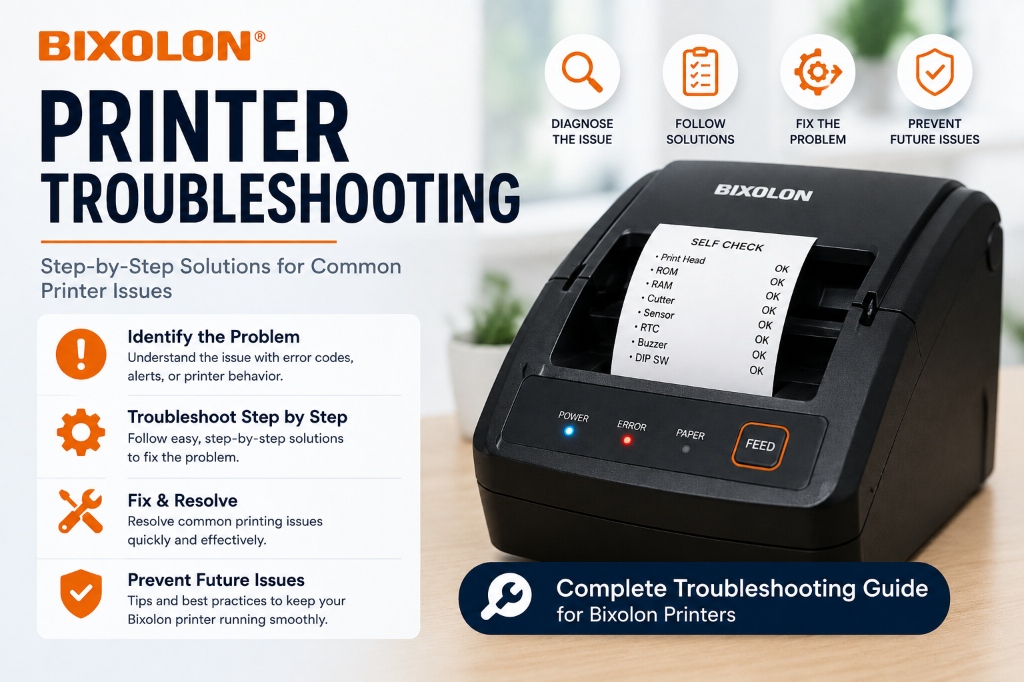
A complete step-by-step troubleshooting flow for Bixolon printers — covering power, connection, print quality, and POS issues, in the order you should actually check them.
When a Bixolon printer stops working, the instinct is usually to search for the exact symptom — but that often leads to checking the wrong thing first and wasting time. The faster approach is to work through troubleshooting in order, the same way a technician would: confirm power, confirm connection, confirm output, then narrow down from there.
This guide walks through that exact sequence. Follow it top to bottom, and you'll isolate the actual cause of almost any Bixolon printer issue — usually within a few minutes, without needing to call support.
Before You Start: Three Checks That Solve Most Issues
Before diving into deeper troubleshooting, rule out the basics. These three checks resolve a surprising share of "broken printer" calls:
- Power cycle the printer. Turn it off, wait 10 full seconds, and turn it back on. This clears minor internal errors that don't require any other fix.
- Check the paper. Open the cover and confirm there's a roll loaded, it's not jammed, and it's thermal paper loaded with the correct side facing the print head.
- Reseat every cable. Unplug and firmly reconnect the power cable and the USB/serial/network cable at both ends. Loose connections are one of the most common — and most overlooked — causes of intermittent printer issues.
If none of these resolve the issue, move on to the structured troubleshooting flow below.
Step 1: Confirm the Printer Itself Is Working
Before touching your computer or POS software, isolate whether the printer is the problem.
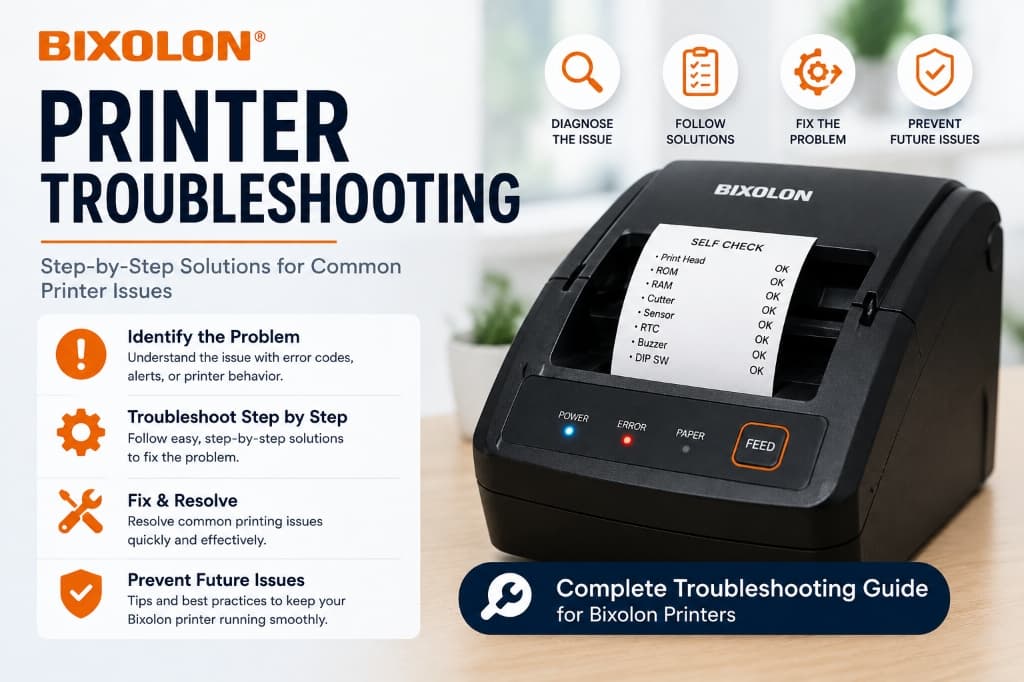
Run a self-test. Most Bixolon printers print a self-test page if you hold down the feed button while powering the printer on (exact button combination varies slightly by model — check your manual if this doesn't trigger it).
The self-test page prints directly from the printer's internal memory, with no computer involved.
- Self-test prints cleanly → the printer's hardware is fine. Your issue is almost certainly connection or software-related. Skip to Step 2.
- Self-test fails, prints blank, or prints streaky/faded text → you have a hardware-level issue. Jump to the "Print Quality Issues" section below before going any further.
- Self-test won't print at all, and the error light is blinking → check for an open cover, paper jam, or paper-out condition first. Resolve that, then retry the self-test.
This single test eliminates more guesswork than any other troubleshooting step, because it tells you immediately whether to focus on the printer or on everything around it.
Step 2: Confirm the Computer or POS System Sees the Printer
Once the self-test passes, the next question is whether your computer or POS system can actually detect the printer.
On Windows:
- Open Settings → Bluetooth & devices → Printers & scanners (or Devices and Printers on older versions).
- Check whether your Bixolon "/bixolon/error-codes-alerts/bixolon-printer-flashing-red-light" title="Bixolon Printer Flashing Red Light: What It Means & How to Fix It">Bixolon model appears in the list.
- If it's listed but shows "Offline" or "Not responding," right-click it, select See what's printing, and clear any stuck jobs from the queue — a stuck job will block every print attempt after it.
- If it's missing entirely, the driver likely isn't installed, or it's installed for the wrong connection type (e.g., installed as a USB printer when you're now connecting over network).
On macOS:
- Open System Settings → Printers & Scanners.
- Confirm the printer is listed and shows as idle, not paused.
- If it's not listed, you'll need to install the Bixolon driver package for your model before macOS can detect it — most Bixolon printers aren't natively supported without it.
On a POS system (Square, Toast, Shopify POS, etc.):
- Check the printer settings inside the POS app itself, not just the OS — many POS platforms maintain their own separate device list.
- Re-select or re-pair the printer from within the app if it's listed as disconnected.
- Restart the POS app="/bixolon/connectivity-issues/bixolon-printer-showing-offline" title="Bixolon Printer Showing Offline? Here's the Fix">POS app (not just the printer) — many integration issues clear after a full app restart.
If the printer doesn't appear anywhere, move to the connection-specific steps below based on how it's connected.
Step 3: Troubleshoot by Connection Type
USB-Connected Printers
- Try a different USB port"/zebra-technologies/drivers-software-firmware (internal software)/zebra-setup-utility-not-detecting-printer-driver-install-failed" title="Fix Zebra Setup Utility Not Detecting Printer (Windows)">USB port — ideally one not behind a USB hub.
- Try a different USB cable if one is available; damaged cables are a frequent, easy-to-miss culprit.
- Uninstall the existing driver completely, restart the computer, then reinstall the latest driver from Bixolon's official support site for your exact model and OS version.
- Check Device Managero/connectivity-issues/rollo-printer-usb-not-detected-disconnecting-port-fix" title="Fix Rollo Printer USB Not Detected & Keeps Disconnecting">Device Manager (Windows) for a yellow warning icon next to the printer — this usually indicates a driver conflict that a clean reinstall will fix.
Network-Connected Printers
- Print the printer's network settings page (usually via a button combination on power-up, model-dependent) to confirm its current IP address.
- Ping that IP address from r/connectivity-issues/brother-printer-network-settings-page-how-to-print" title="How to Print a Brother Network settings Page">IP address from your computer's command line to confirm the printer is actually reachable on the network.
- If the IP address has /connectivity-issues/canon-printer-offline-windows-11" title="Fix Canon Printer Offline in Windows 11 (100% Working)">IP address has changed since setup, that's almost always the cause — reconfigure your POS software with the new address. Or better, assign the printer a static IP through its settings utility so this doesn't happen again.
- Confirm the printer and the computer/POS terminal are on the same network/VLAN — printers on a guest network won't be visible to devices on the main network.
Bluetooth-Connected Printers
- Forget/unpair the printer completely from your device's Bluetooth settings — don't just attempt to reconnect to an existing pairing that's gone stale.
- Put the printer into pairing="/fujifilm/setup-installation/instax-link-wide-bluetooth-setup-connection-guide" title="Instax Link WIDE Bluetooth Setup Guide (iOS, Android & Cameras)">pairing mode again (check your model's manual for the exact button sequence).
- Re-pair from scratch.
- If pairing repeatedly fails, confirm the printer isn't still actively paired to a different device — most Bixolon mobile printers can only maintain one active Bluetooth connection at a time.
Step 4: Print Quality Issues
If the self-test in Step 1 printed but looked wrong, the issue is physical, not software:
- Faded or light print → the paper may be loaded thermal-side-down, or the print head needs cleaning.
- Streaky or partially missing print → clean the print head using an isopropyl-alcohol cleaning pen or swab (power off first, let the head cool, never use anything abrasive).
- Garbled or random characters instead of text → this is almost always a driver/settings mismatch rather than a hardware fault. Reinstall the correct driver before assuming the print head is damaged.
- Print is fine but cutting is off-center or incomplete → check for debris in the auto-cutter mechanism, and confirm the paper width matches the model's specification.
Step 5: Intermittent Issues (Works Sometimes, Fails Randomly)
Intermittent problems are the most frustrating to diagnose because the basic checks above don't show anything wrong. A few causes specific to intermittent failures:
- Print head overheating during high-volume periods — the printer pauses automatically and resumes once it cools; this is expected behavior, not a fault.
- USB power management settings putting the port to sleep — disable USB selective suspend in Windows power settings for ports used by receipt printers.
- Network DHCP lease changes — if the printer's IP address isn't static, it can silently change after a router reboot, causing the printer to "disappear" until reconfigured.
- Bluetooth interference — other wireless devices near the printer (especially other Bluetooth peripherals) can cause dropped connections in busy retail environments.
How to Reset a Bixolon Printer
When in doubt, a reset clears most lingering software-level glitches:
- Soft reset: Power off, wait 10 seconds, power back on. Clears temporary errors without touching settings.
- Factory reset: Most models require a specific button-hold sequence during power-up (varies by model — check your manual). This restores default settings, including IP settings, so only use it if you're prepared to reconfigure network/Bluetooth settings afterward.
Preventive Maintenance Tips
A few habits that prevent most of the issues covered above from happening in the first place:
- Clean the print head every 2–4 weeks in high-volume environments, or every few months in light use.
- Use only genuine thermal paper rated for your model — off-brand paper is a common cause of fading and jams.
- Assign static IP addresses to all network-connected printers used with POS systems.
- Keep drivers updated, especially after major OS updates, rather than waiting for something to break first.
- Power down printers properly rather than cutting power abruptly, especially on units with configurable settings.
Frequently Asked Questions
Why does my Bixolon printer work on one computer but not another?
This almost always points to a driver issue on the computer that isn't working, rather than a fault with the printer itself — reinstall the correct driver on that machine first.
My Bixolon printer passed the self-test but still won't print from my POS software — what's wrong?
Since the hardware is confirmed working, the issue is in the software layer — check that the correct printer is selected inside the POS app itself (not just the OS). And restart the POS application.
How often should I clean my Bixolon print head?
Every 2–4 weeks for high-volume retail or restaurant use; every few months for light, occasional use. Faded or streaky print is the clearest sign it's overdue.
Is it safe to do a factory reset on my Bixolon printer?
Yes, but only if you're ready to reconfigure network or Bluetooth settings afterward, since a factory reset clears those along with any custom settings.
Can I fix a Bixolon printer error myself, or do I need a technician?
The vast majority of errors — paper jams, open covers, driver issues, connectivity problems — are user-fixable in a few minutes. Only persistent hardware faults (a damaged print head or a printer that won't power on) typically require a technician.
When to Contact Support
If you've worked through every step above and the printer still isn't functioning correctly, it's time to involve Bixolon support or an authorized technician — particularly if:
- The self-test consistently fails or prints visibly damaged output
- The printer won't power on after confirming the power supply works
- You've reinstalled drivers, swapped cables, and tried multiple ports/computers with no change
At that point, you're likely dealing with a genuine hardware fault rather than something fixable through settings.
Most Bixolon printer problems trace back to one of three things: a loose connection, an outdated driver, or a setting that changed without anyone noticing. Working through the steps above in order — printer.
Then connection, then software — will get you to the actual cause faster than jumping straight to a specific fix.
