


The Quick Answer
Windows 11 handles printer installations aggressively. Discover the correct order to download, install, and configure your Bixolon driver to avoid generic driver overrides.
Windows 11 handles printer setup differently from Windows 10 in a few small but consequential ways — enough that a "just plug it in and let Windows do it" approach usually leaves you with a partially working printer that mysteriously fails on real print jobs. Here's how to set up a Bixolon printer on Windows 11 correctly the first time.
Before You Start
Two things worth checking before downloading anything:
Confirm your exact printer model. Print a self-test (hold the Feed button while powering on for most models) and note the model number on the printout — this is more reliable than reading a worn label on the printer's case.
Confirm your Windows 11 build. Open Settings → System → About and note the Windows edition and version. Bixolon drivers are matched to specific OS versions; a driver for Windows 10 may install on Windows 11 but exhibit unpredictable behavior.
Both of these save you from downloading the wrong package and having to start over.
Downloading the Correct Driver
Head to Bixolon's official support site and navigate to the driver section for your model. For most Bixolon printers, you'll find a driver package labeled specifically for Windows 11 or a unified Windows 10/11 driver. Do not use:
- Generic ESC/POS drivers from third-party sites — these often work at a basic level but cause garbled output or feature gaps
- Windows 7 or Windows 8 legacy drivers — architectural differences will cause failures
- Driver files hosted on non-Bixolon sites — even if they look right, versions can be outdated
Once downloaded, note where the installer saved to — usually your Downloads folder.
Installation: Order Matters
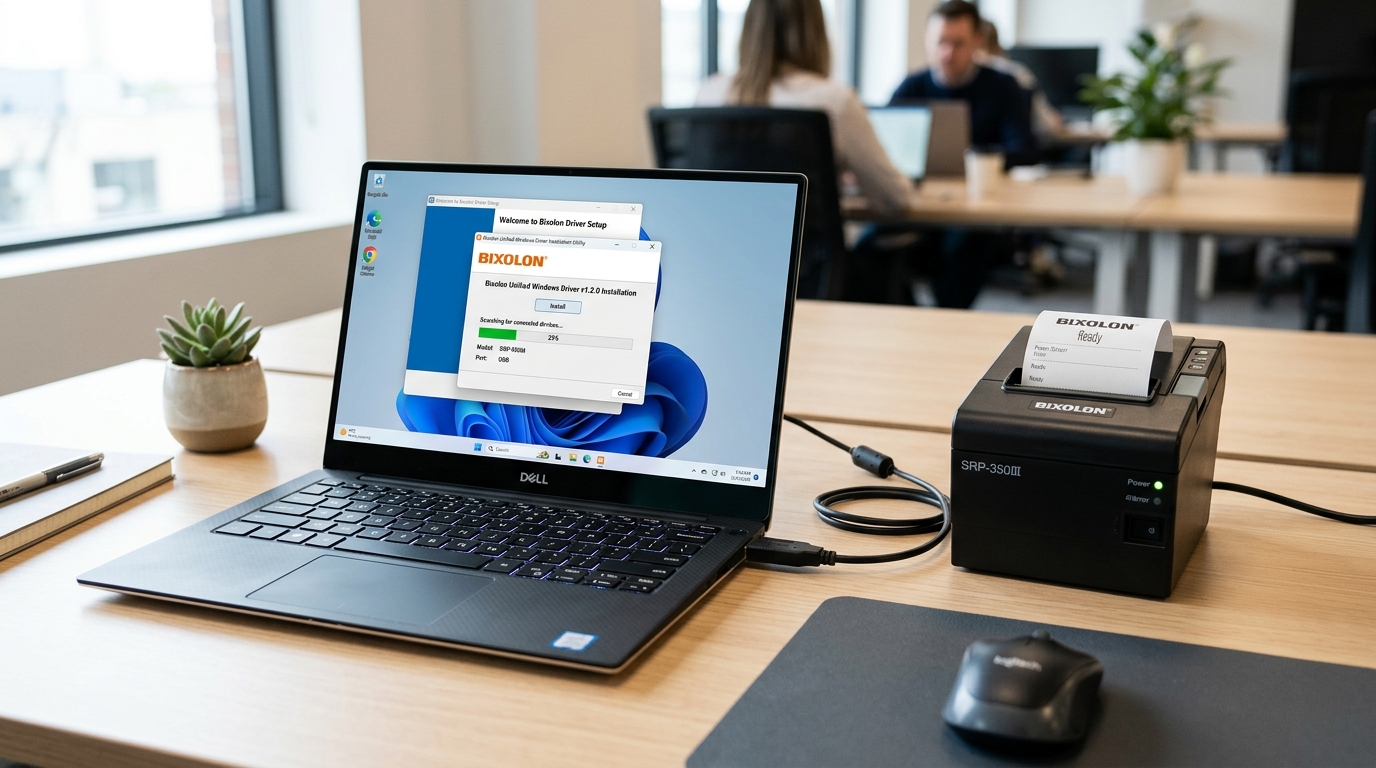
The single most important thing about installing a Bixolon printer on Windows 11: install the driver before you plug the printer in.
Windows 11 aggressively tries to auto-install a generic driver the moment it detects new USB hardware. If you plug the printer in first, Windows may install its own driver, and then your Bixolon driver installation may not overwrite it cleanly.
The correct order:
- Unplug the printer from USB ref="/dymo/connectivity-issues/dymo-connect-not-detecting-printer" title="Fix DYMO Connect Not Detecting Printer (USB & Wi-Fi)">USB if it's currently connected.
- Right-click the downloaded installer and select Run as administrator.
- Accept the User Account Control prompt.
- Follow the installer to completion.
- Only after the installer reports success, plug the printer in.
- Windows 11 will detect the printeres/dascom-printer-offline-usb-not-detected-windows" title="Fix Dascom Printer Offline & USB Not Detected in Windows 11">Windows 11 will detect the printer and immediately use the pre-installed Bixolon driver rather than downloading a generic replacement.
Common Windows 11 Quirks
The "Printer & Scanners" Redesign
Windows 11 moved printer management out of the classic Control Panel into the modern Settings app. Most tasks work through Settings → Bluetooth & devices → Printers & scanners, but a few advanced tasks — like adjusting driver properties or reassigning ports — still require the classic Control Panel view.
To access it: search for "Control Panel" in Start, then navigate to Devices and Printers.
Automatic Driver Updates
Windows 11 automatically installs printer drivers through Windows Update by default. If Windows Update pushes a generic driver update after you've installed the Bixolon one, it can override your correct driver. To prevent this:
- Open Group Policy Editor (requires Windows 11 Pro; type
gpedit.mscin Run). - Navigate to Computer Configuration → Administrative Templates → Windows Components → Windows Update.
- Enable Do not include drivers with Windows Updates.
For Windows 11 Home (which lacks Group Policy Editor), the equivalent registry setting works but requires careful editing — most users are better off just watching for driver changes and reinstalling the Bixolon driver if needed.
Print Spooler Handling
Windows 11's print spooler is more aggressive about pausing when it detects errors. If a print job fails, the spooler may go into a paused state that blocks subsequent jobs. To restart:
- Settings → Bluetooth & devices → Printers & scanners → your printer → Open print queue
- Click the Printer menu and uncheck Pause Printing if checked
- Alternatively, restart the Print Spooler service (Services.msc → Print Spooler → Restart)
Windows Hello and Printer Access
Windows Hello sign-in occasionally causes brief delays where recently-connected printers appear offline for the first minute or two after login. Wait a moment before troubleshooting — the printer often reconnects on its own once the user session fully initializes.
Connection-Specific Setup
USB Setup
Follow the general install order above. After plugging in, verify the printer appears in Printers & scanners. If it shows as "Unspecified" in Devices and Printers, the driver installed on the wrong port — reinstall matching the specific USB port you're actually using.
Ethernet Setup
- Confirm the printer has a valid IP address (print a network configuration page from the printer).
- In Settings → Bluetooth & devices → Printers & scanners, click Add device.
- If the printer isn't found automatically, click Add manually.
- Select Add a printer using a TCP/IP address or hostname.
- Enter the printer's IP address; Windows will attempt to detect and configure it.
- When prompted for the driver, select Have Disk and point to the Bixolon driver files.
Bluetooth Setup
Windows 11's Bluetooth pairing flow works with Bixolon Bluetooth printers, but check the Bluetooth pairing guide if pairing fails — Bixolon-specific issues like the iOS/Android mode setting on the SPP-R310 apply here even on Windows.
Testing the Install
Once installation completes and the printer appears in Printers & scanners:
- Click the printer, then Printer preferences.
- Click Print Test Pagea href="/kodak/printing-problems/kodak-printer-alignment-failed" title="Fix Kodak Printer Calibration or Alignment Failed Error">Test Page (usually available through the properties menu).
- Confirm a test page prints rinting-problems/kodak-printer-alignment-failed" title="Fix Kodak Printer Calibration or Alignment Failed Error">test page prints cleanly.
If the test page shows garbled text or unexpected formatting, the driver may have installed but be pointing to the wrong port, or a generic driver may have been used instead of the Bixolon one.
Configuring Print Preferences
Once your Bixolon printer is installed and working on Windows 11, a few preferences worth checking:
Paper Size. Set to match your actual paper roll (usually 72mm or 80mm for receipt printers, or the label size for label printers). Wrong paper size causes cutting issues and content overflow.
Print Density. Under advanced printer preferences, set density to match your paper — too high wastes power and generates heat; too low produces faint output.
Cutter Behavior. Choose between full cut, partial cut, or no cut per document as appropriate for your workflow. POS software may override this per print job, but the driver default sets the baseline.
Buffer Settings. For high-volume use, increasing the driver's internal buffer can improve print speed under load. Default settings work for most use cases.
Uninstalling the Bixolon Driver
If you ever need to remove the driver — before replacing with a newer version, moving to a different printer, or troubleshooting a bad install:
- Unplug the printer.
- Settings → Bluetooth & devices → Printers & scanners → remove the printer.
- Settings → Apps → uninstall the Bixolon driver package.
- Control Panel → Devices and Printers → Print server properties → Drivers tab → remove the driver package.
- Restart Windows 11dymo/drivers-software-firmware/dymo-label-software-wont-open-install" title="Fix DYMO Software Won't Open or Install (Windows 11 / Mac)">Windows 11.
Skipping step 4 in particular leaves driver remnants that can interfere with future installs.
